Before you start
6- A Tags (Adobe Launch) property for the site, with a development environment and a test page you control
- Adobe Analytics with permission to create report suites and enable eVars, props and events, or two report suites that already exist
- Permission in Tags to install extensions and to build and publish libraries
- The Adobe Experience Platform Debugger installed in your browser
- Your Experience Cloud Organization ID, or access to find it
- Basic knowledge of Tags concepts: extension, data element, rule, library
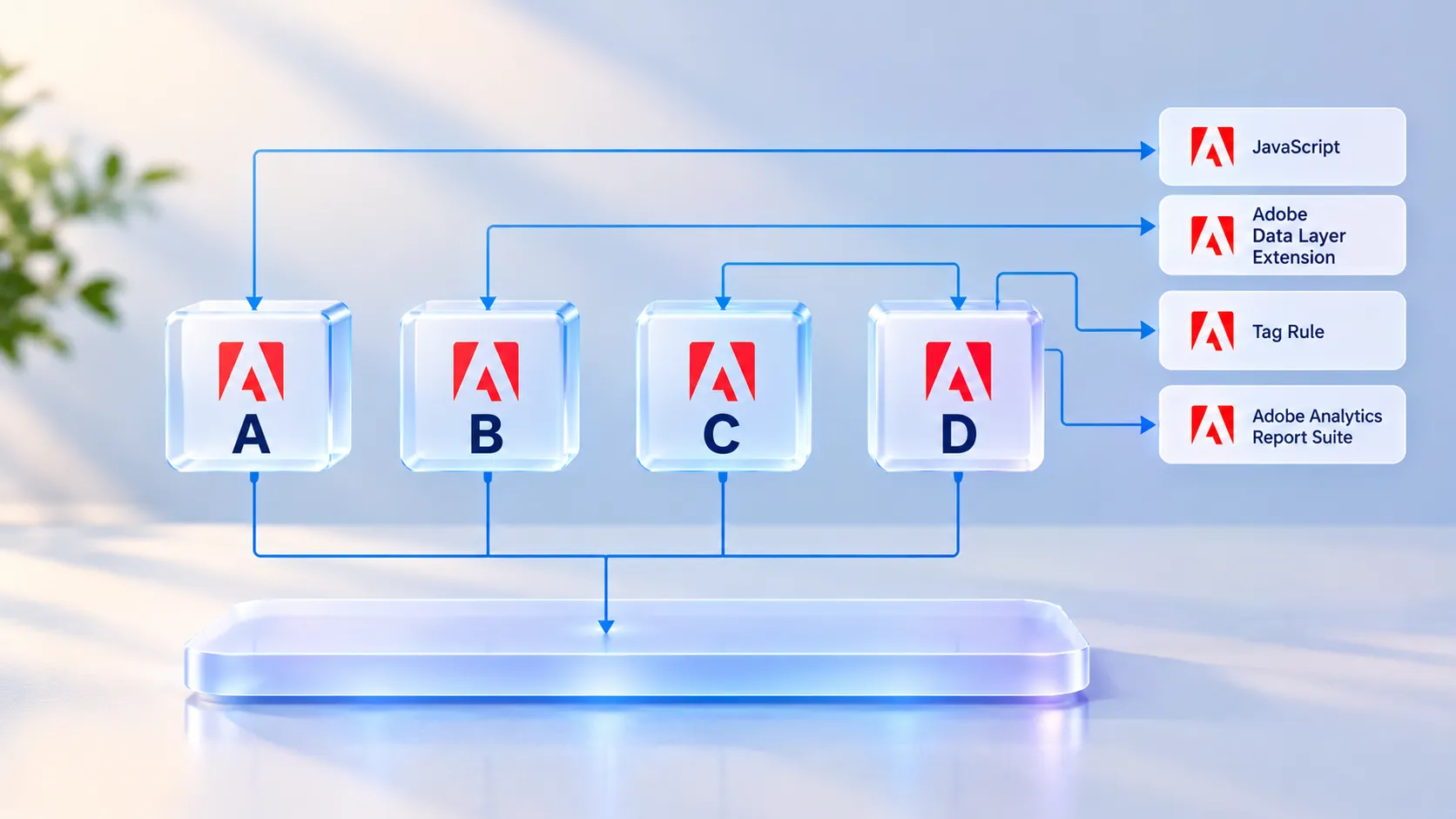
This guide sets up one example website so that every Adobe Analytics hit from its Tags (Adobe Launch) property goes to two report suites at once: a Global report suite and the site's own report suite. It uses only the Adobe Analytics extension and the Experience Cloud ID Service extension. By the end, one beacon in the browser names both suites, and both suites show the page view.
The example site is store.example.com, with a Tags property called Example Store web. Every ID below is a placeholder for your own:
| Item | Example value |
|---|---|
| Site | store.example.com |
| Global report suite (development, staging, production) | exgrpglobaldev, exgrpglobalstg, exgrpglobalprod |
| Site report suite | exstoredev, exstorestg, exstoreprod |
| Tracking server (first-party) | data.example.com |
| Organization ID | 0123456789ABCDEF01234567@AdobeOrg |
What multi-suite tagging is, and when not to use it
Multi-suite tagging sends each hit to a global report suite and to one or more child report suites, so different teams see different slices of the same data. In the tracking code you list the global suite and the child suites. Adobe's best practice is to list the global suite first.
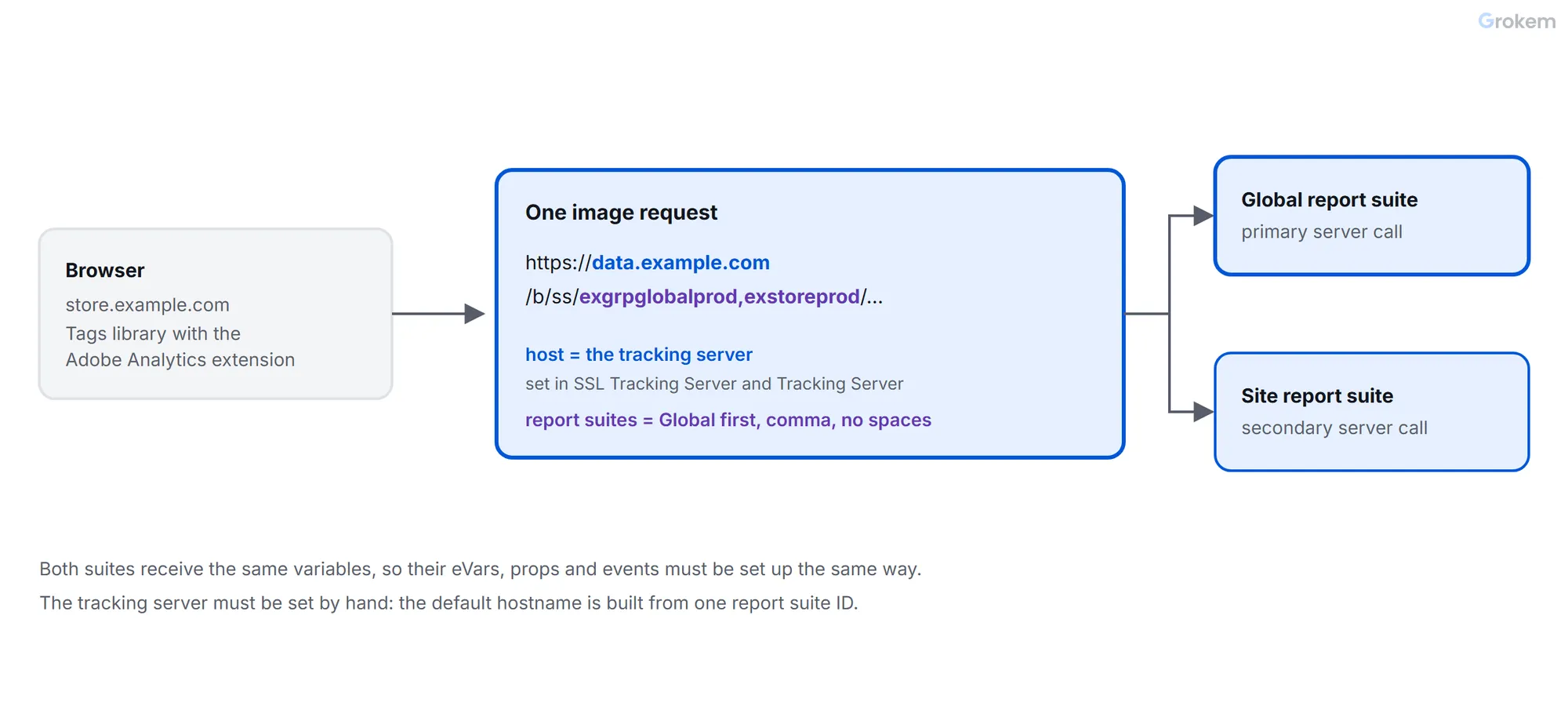
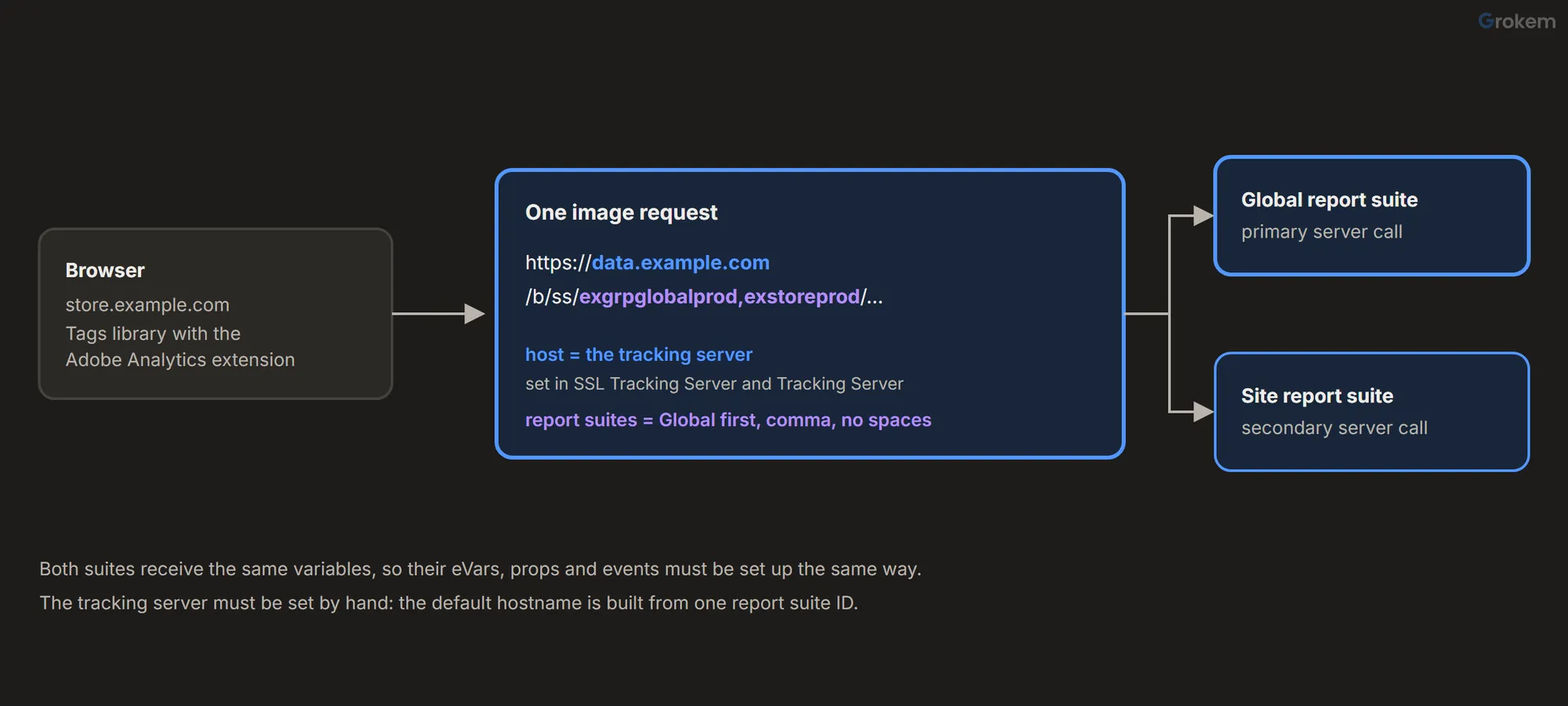
It has a cost. Adobe's pages say a separate server call is made to each report suite in the image request: a primary call to the global suite and a secondary call to each child suite. Secondary calls count, so two suites mean two server calls for every hit.
Adobe's guidance is that one global report suite with virtual report suites (VRS) is often the better practice, because a VRS needs no secondary calls. Keep multi-suite tagging when a site needs something a VRS cannot give:
| The site needs … | Use |
|---|---|
| Filtered reports of its own data only | Global suite with a VRS (no secondary calls) |
| Its own data feed | Multi-suite tagging (data feeds cannot use a VRS) |
| Revenue in its own currency | Multi-suite tagging (a VRS reports in its source suite's currency) |
| Its own partner integration account | Multi-suite tagging (integrations cannot be set up in a VRS) |
| Its own unique-value limits, so a small site is not bucketed as "low traffic" | Multi-suite tagging (a VRS shares the source suite's limits) |
If none of these applies, use the Global suite with a VRS and stop here. If one does, the rest of this guide builds the multi-suite setup. You can move to a VRS later: Adobe says to leave only the global report suite ID in the implementation when you do.
Keep the variable mapping the same in both suites
A beacon carries one set of variables: the same eVar1, prop1 and event1 go to both suites. Each suite then reads those numbers with its own settings. If eVar2 is "Page type" in the Global suite and "Campaign" in the site suite, one hit produces a page type in one report and a campaign in the other.
So treat the two suites as one design. In the example, both suites enable the same variables, with the same allocation and expiration:
| Variable | Meaning | Value on store.example.com |
|---|---|---|
| Page name | The page | example-store: plus the path |
eVar1 |
Site | example-store |
eVar2 |
Page type | home, product, checkout |
event1 |
Internal search | counted when a search runs |
An Adobe employee's answer in the Experience League community says sending to two suites works as long as both have the same report suite settings and variable structure. The practical way to get there is in step 2: create the site suite with the Global suite as its template.
Why two report suites make the tracking server mandatory
The tracking server is the hostname that receives the hit. Adobe's tutorial on finding it says it is the hostname in the beacon, and that the report suite IDs are a comma-separated list right after /b/ss/ in the path of the beacon.
When you leave it empty, Adobe derives a default hostname from the report suite ID:
| Where | Default when the fields are empty |
|---|---|
AppMeasurement (s.trackingServerSecure and s.trackingServer both blank) |
[rsid].2o7.net |
| The Adobe Analytics extension in Tags (SSL Tracking Server and Tracking Server both blank) | [rsid].data.adobedc.net |
Both defaults contain [rsid], one report suite ID. With two suites there is no single ID to put there: exgrpglobalprod,exstoreprod.data.adobedc.net is not a hostname you can use. That is why the extension asks for a tracking server as soon as you enter a second report suite. A community thread from 2018 describes exactly this: a user who entered two production suites was asked for Tracking Server values, and the accepted answer, from an Adobe employee, says to make sure the value is the same across all properties in your organization. The reason above is the mechanism behind that report, not a rule quoted from Adobe.
The extension has two fields:
- SSL Tracking Server is the domain for data sent over HTTPS, which is nearly all traffic. If you leave it blank, it uses the Tracking Server value. Enter a domain only: no protocol, path, port or slashes. Adobe warns that a value that is not defined correctly can cause data loss.
- Tracking Server is the older field. Adobe's extension page describes it as where the first-party cookie is stored.
Set both fields to the same hostname unless you have a reason not to. These are the forms the hostname takes:
| Form | Example | When |
|---|---|---|
| Third-party, tenant subdomain | example.data.adobedc.net |
No first-party domain set up |
| Third-party, older form | examplecompany.sc.omtrdc.net |
Existing implementations that already use it |
| First-party (CNAME) | data.example.com |
The hostname matches the site's domain |
Adobe's Target documentation puts the test simply: if the hostname of the request matches the domain you are on, it is a first-party tracking server.
The setup in one view
Step 1 of 9: Choose the approach and write down the suite IDs
Decide that multi-suite tagging is the right tool, using the table above. Then write down, for each environment, the two report suite IDs, the tracking server and the Organization ID. You will enter them in several places, and they must match everywhere.
| Setting | Development | Staging | Production |
|---|---|---|---|
| Report suites field (Global first, no spaces) | exgrpglobaldev,exstoredev |
exgrpglobalstg,exstorestg |
exgrpglobalprod,exstoreprod |
| SSL Tracking Server | data.example.com |
data.example.com |
data.example.com |
| Tracking Server | data.example.com |
data.example.com |
data.example.com |
The tracking server is the same in all three environments: it is the hostname of your data collection, not of one report suite. IDs separated by a comma with no spaces are the form Adobe documents for multiple report suites.
Step 2 of 9: Create the Global and site report suites, with the same variables
You need access to Adobe Analytics through the Admin Console, which a system-level administrator grants. For each environment, starting with development:
- In Adobe Analytics open Admin, then Report Suites, and select Add Report Suite.
- Choose a predefined template, or an existing report suite as the template. Only settings are copied, not data.
- Complete the report suite fields and select Create Report Suite.
A report suite ID can be at most 40 bytes and the friendly name at most 255 bytes. Create the Global suite first and enable the variables from the table above in its settings, with allocation and expiration. Then create the site suite with the Global suite as its template: it arrives with the same settings, so the numbers mean the same in both. Compare the two suites once, then repeat for staging and production.
Step 3 of 9: Find your company's tracking server
The tracking server is already in your hits if the site already sends Analytics data. Open the page, and use either route:
- Experience Platform Debugger. Open the Adobe Experience Platform Debugger on the page and select Analytics in the left navigation. The tracking server is in the Hostname section.
- Browser developer tools. Open the Network panel, reload the page and filter for
/ss. The Analytics requests appear, and the tracking server is the hostname of the request. The report suite IDs sit in the path right after/b/ss/.
What the hostname tells you:
- It matches the site's domain, for example
data.example.com: a first-party tracking server, set up with a CNAME. Use it as it is. - It is
example.data.adobedc.netorexamplecompany.sc.omtrdc.net: a third-party tracking server. Use it as it is; a first-party CNAME is optional. - It is
exstoreprod.data.adobedc.netorexstoreprod.2o7.net, built from the report suite ID: the auto-derived default. You cannot use it for two suites, and it is not your company's tracking server. Go to step 4.
If the site sends no data yet, Adobe's tutorial says to choose a subdomain of .sc.omtrdc.net for a third-party tracking server, and lists the report suite IDs under Admin, then Report Suites. For a new setup, confirm the value with Adobe before you rely on it.
The Admin Console shows your Organization ID, not the tracking server. Open adminconsole.adobe.com and the ID is in the URL, in the form …/C538193582390300A495CC9@AdobeOrg/overview.
Step 4 of 9: If you do not know it, contact Adobe Customer Care
Contact Adobe Customer Care when any of these is true:
- Every existing hit uses the auto-derived default, so your company has no tracking server to copy.
- There is no first-party CNAME and you want one.
- You want a CNAME set up or changed.
- You do not have your Organization ID. Adobe's Experience Cloud ID Service page says to contact Customer Care if you do not have it.
You can open the ticket from inside Adobe Analytics: Adobe has a tutorial on submitting a support ticket to Customer Care from directly in the product. Put the facts a person needs in the first message:
Subject: Tracking server for multi-suite tagging in Tags (Adobe Launch)

Organization ID: 0123456789ABCDEF01234567@AdobeOrg
We are moving store.example.com to multi-suite tagging in the Adobe Analytics
extension and need the tracking server to enter in SSL Tracking Server.

Report suites:
  Production: exgrpglobalprod (Global), exstoreprod (site)
  Staging:    exgrpglobalstg,  exstorestg
  Development: exgrpglobaldev, exstoredev

Current /b/ss/ host on store.example.com: exstoreprod.data.adobedc.net
First-party CNAME in place: no

Please tell us: (1) our company's tracking server for third-party collection,
(2) whether a first-party CNAME can be set up for data.example.com through the
Adobe-managed certificate program, and (3) the data center (RDC) type if it
matters for data residency.
For a first-party CNAME, Adobe's managed certificate program gives the steps to expect: you complete the First-party domain request form and open the ticket; Adobe provides a CNAME record to add to your DNS; after the record is in place, Adobe works with DigiCert to buy and install the certificate. You then test the hostname: open your-hostname/_check in a browser and expect SUCCESS. Adobe renews the certificate automatically 30 days before it expires if the CNAME still points to Adobe, so do not remove it or point it to a CDN. If you have data residency or compliance requirements, include the RDC type in the request.
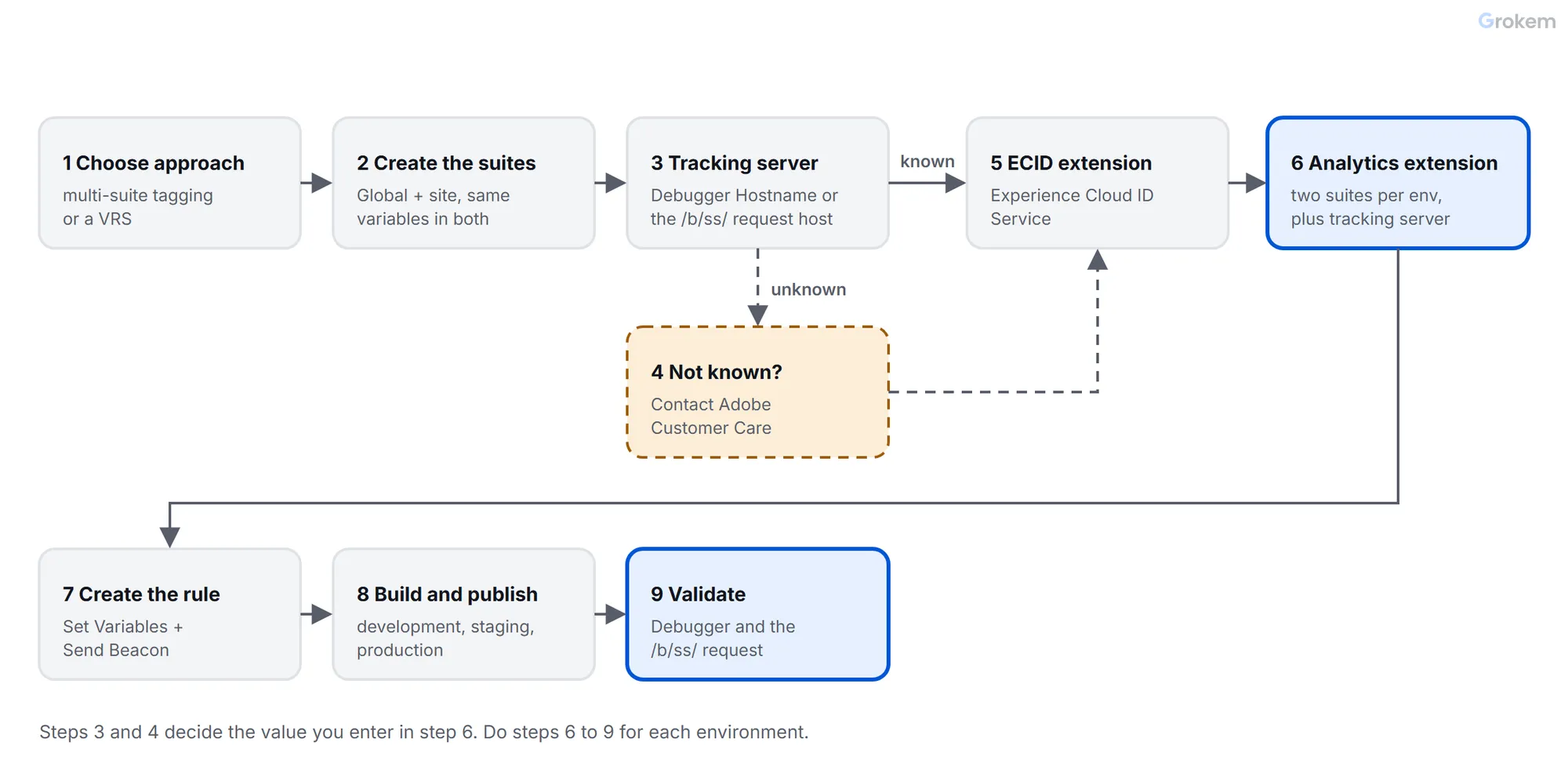
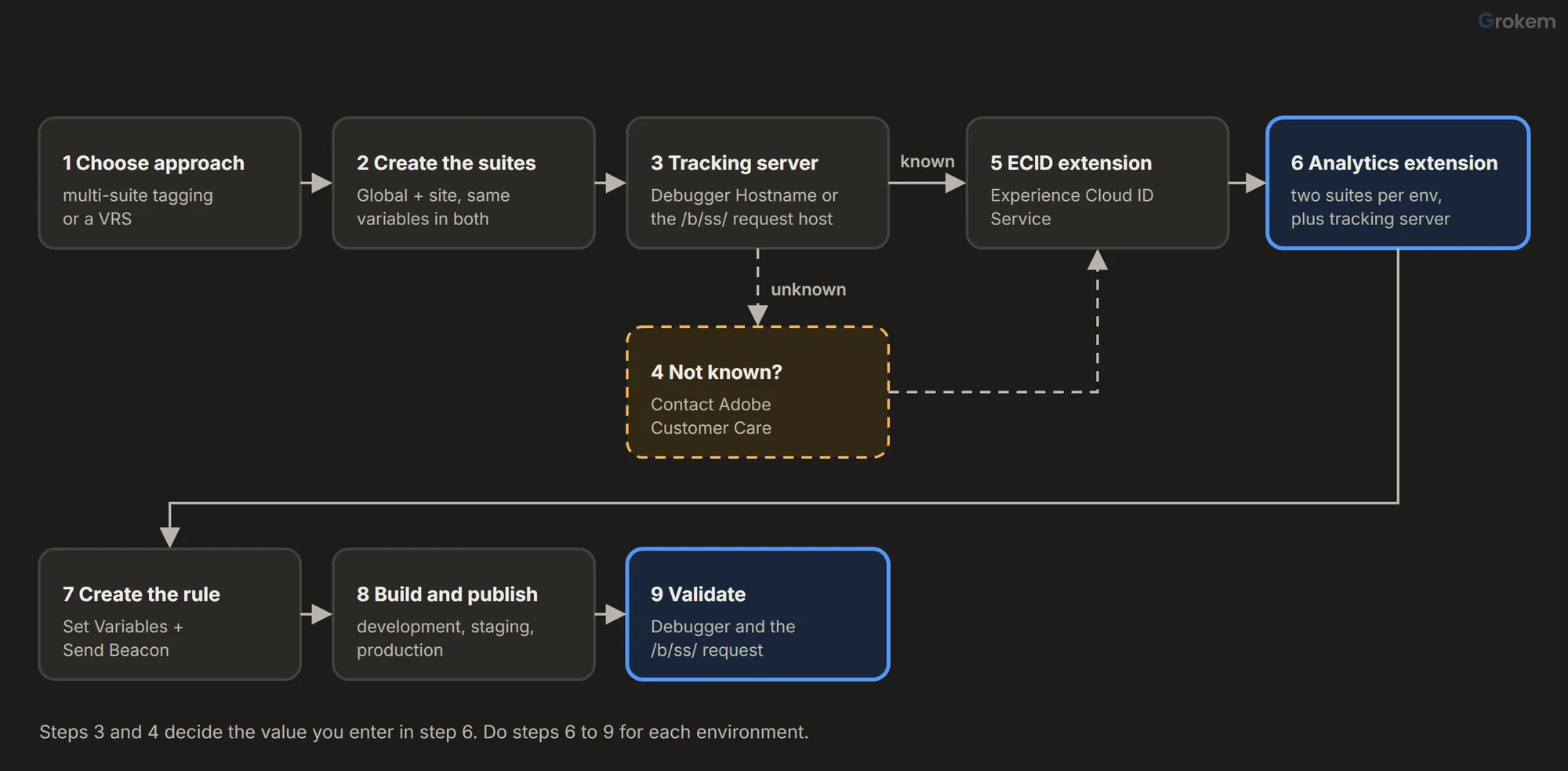
Ask early: the answer sets the value you enter in step 6, and a CNAME also needs your DNS team. Expect an answer that gives you the hostname to use and, for a CNAME, the record to add. Confirm the hostname in a test request before you publish.
Step 5 of 9: Install the Experience Cloud ID Service extension
The Adobe Analytics extension identifies visitors with the Experience Cloud ID (ECID), and it needs a separate extension for that. Adobe's page says the Analytics extension requires a separate tag extension to collect ECID.
- In the Tags property, open Extensions, then Catalog.
- Find the Experience Cloud ID Service extension, hover over it and select Install.
- Open its configuration and check the Experience Cloud Organization ID: a 24-character alphanumeric string that ends with
@AdobeOrg. The field is normally filled in for you; if it is empty and you do not know the ID, Adobe's page says to contact Customer Care. - Select Save.
Without this extension, the Analytics extension falls back to its older s_vi cookie, set at the tracking server domain. Adobe advises against it. A third-party tracking server then sets a third-party cookie, which most browsers reject. Adobe's page also says that once SSL Tracking Server is set correctly, no further visitor identification measures are required.
The adobe-mcid message. You may see a build or console message that the ECID code, named adobe-mcid, is not bundled. Adobe's pages do not list that message; what they document is the dependency: the Analytics extension needs the Experience Cloud ID Service extension in the same property. If you see the message, check that the extension is installed in the property, that it is part of the library you built, and that you rebuilt after installing it. If it persists, send the exact message and the library name to Customer Care.
Step 6 of 9: Install and configure the Adobe Analytics extension
- In the Tags property, open Extensions, then Catalog, find Adobe Analytics and install it.
- Under Library management, choose Manage the library for me.
- In the report suite fields for Development, Staging and Production, specify the two report suites of each environment. Enter the Global ID first and the site ID second, separated by a comma with no spaces: for Development
exgrpglobaldev,exstoredev.
- Under General, enter the tracking server. Put
data.example.comin SSL Tracking Server, and in Tracking Server too if the form asks for it. Enter the domain only. - Set Currency Code to the currency the site sends, because it sets the conversion rate for revenue and currency events. Leave Character Set at UTF-8 unless your site uses another encoding; Adobe recommends matching the site.
- Leave Link Tracking and Global Variables as you need them. Each link tracking option you switch on adds link hits to both suites.
- Save the extension.
A rule in this extension cannot change the report suite later. These fields are the only place the two suites are set, so an ordinary rule cannot send a hit to one suite only.
Step 7 of 9: Create the rule that sends the page view
Create two data elements of type Custom Code. They give the rule the page name and the site value:
// Page Name
return "example-store:" + location.pathname;
// Site ID
return "example-store";
Create a rule named Adobe – Page view with the Core event Library Loaded (Page Top). Add two actions from the Adobe Analytics extension. Set Variables fills the variables, and Send Beacon sends them: the extension does not send a beacon from Set Variables.
| Action | Setting |
|---|---|
| Set Variables | Page name %Page Name%, eVar1 %Site ID% |
| Send Beacon | Page view, the option that increments a page view (s.t()) |
Nothing else is needed for two suites. The beacon already carries both IDs from the extension settings.
Step 8 of 9: Build and publish the library to each environment
A library holds the extensions, data elements and rules; a build is the library compiled for an environment. New libraries start in the Development state, where all changes are made.
- Open Publishing, create a library or edit the existing one, and add the extension, the data elements and the rule.
- Select Build to Development. The library must be assigned to the development environment, or the build fails.
- When development works, select Submit for Approval, then Submit & Build to Staging, and test on staging.
- Approve and publish to production. The library goes live in production when you choose to build and publish it.
Each environment has its own embed code, the client-side code in the site's pages. Check that the staging and production pages carry their own embed codes, because each environment's build holds that environment's report suites.
Step 9 of 9: Validate with the Debugger and the network call
Test development first, on a page that loads the development library.
- Open the Experience Platform Debugger and connect it to the page. In Configuration, in the Page Embed Codes section, open the Actions dropdown and select Replace. Pick the property and the Development environment, so the page loads your development library (Adobe's Web SDK tutorial shows this flow; the labels can change).
- Select Analytics in the left navigation. Check the Hostname section: it must be
data.example.com, not an address built from a report suite ID. Look for the report suite IDs the hit goes to (the Debugger shows them asreportSuiteIds) and confirm both are there. - Open the Network panel, reload and filter for
/ss. The request host is your tracking server. In the path after/b/ss/, both suite IDs appear, Global first, separated by a comma:/b/ss/exgrpglobaldev,exstoredev/.
- After processing, open the page views report in both suites and break it down by
eVar1: both showexample-store.
Adobe's processing is not instant, so allow time before you compare the two suites.
Configuration reference
| Setting | Where | Value for the example | Notes |
|---|---|---|---|
| Report suites | Analytics extension, Library management | exgrpglobaldev,exstoredev (and the staging and production pairs) |
Global first, comma, no spaces, per environment |
| SSL Tracking Server | Analytics extension, General | data.example.com |
HTTPS data; domain only; blank falls back to Tracking Server |
| Tracking Server | Analytics extension, General | data.example.com |
Fallback and first-party cookie location |
| Currency Code | Analytics extension, General | EUR |
Conversion rate for revenue |
| Character Set | Analytics extension, General | UTF-8 | Match the site |
| Experience Cloud Organization ID | Experience Cloud ID Service extension | 0123456789ABCDEF01234567@AdobeOrg |
24 characters plus @AdobeOrg |
| Page name | Rule, Set Variables | %Page Name% |
Prefixed with the site |
eVar1 |
Rule, Set Variables | %Site ID% |
Same variable in both suites |
| Beacon | Rule, Send Beacon | Page view (s.t()) |
One beacon, two suites |
QA checklist
| Check | How | Expected |
|---|---|---|
| Two suites in one hit | Network panel, path after /b/ss/ |
exgrpglobaldev,exstoredev, Global first, no spaces |
| Tracking server is yours | Request host, Debugger Hostname | data.example.com, not a name built from a report suite ID |
| SSL Tracking Server is set | Analytics extension, General | A domain only, no protocol or slash |
| Same value in every property | Extension of each property | The same tracking server |
| ECID extension is in the build | Extensions of the property, the built library | Experience Cloud ID Service installed and built |
| Visitor ID is ECID | Hit parameters in the Debugger | An ECID, not an s_vi fallback |
| One hit per page view | Network panel, one page load | One page view request |
| Variables line up | Admin, both suites | The same eVars, props and events with the same settings |
| Environments are separate | Development page, production suites | No development hits in production suites |
| First-party CNAME valid (if used) | your-hostname/_check |
SUCCESS |
| Both suites show the page | Page views by eVar1, after processing |
example-store in both |
Expected result
On the development page, the Network panel shows one request to your tracking server (for example `data.example.com`) whose path after `/b/ss/` is `exgrpglobaldev,exstoredev`: the Global ID, a comma, the site ID, no spaces. The Debugger's Analytics view shows the same tracking server in Hostname. After processing, the page view appears in both report suites, and a breakdown by `eVar1` shows `example-store` in both. Staging and production repeat the pattern with their own report suite pairs and the same tracking server.
Troubleshooting
| Problem | Likely cause | Fix |
|---|---|---|
| The Analytics extension asks for a Tracking Server as soon as you enter the second report suite. | The extension builds its default hostname from one report suite ID, so a list of two has no default to fall back on. | Enter your company's tracking server in SSL Tracking Server, and in Tracking Server too if the form asks for it. Use the same value in every property of the organization. |
| Data stops arriving after you set SSL Tracking Server. | The value is not the hostname that receives your data, or it contains a protocol, a path, a port or a slash. Adobe warns that a value that is not defined correctly can cause data loss. | Copy the hostname from an existing request (Debugger Hostname, or the host in the Network panel), enter the domain only, rebuild and test again. |
| The request goes to a hostname built from a report suite ID, or to a malformed one. | Both tracking server fields are empty. The defaults, `[rsid].2o7.net` and `[rsid].data.adobedc.net`, are built from a single report suite ID. | Set the tracking server explicitly in the extension and rebuild the library for the environment you test. |
| Only one of the two report suites receives the hit. | The IDs are separated by a comma and a space, or one ID has a typo, or the other suite is missing from the environment you are testing. | Open the request and read the path after /b/ss/. Separate the IDs with a comma and no spaces, and compare each ID with Admin, Report Suites. |
| The two suites show different values for the same eVar. | The suites enabled the variables with different numbers or settings, and one beacon carries the same variables to both. | Create the site suite with the Global suite as its template and keep one variable map for both. Correct the suite that deviates. |
| Visitor counts look wrong and the visitor cookie is a third-party `s_vi` cookie. | The Experience Cloud ID Service extension is missing, so the Analytics extension falls back to its older `s_vi` identification, set at the tracking server domain, which most browsers reject when it is third-party. | Install the Experience Cloud ID Service extension in the property, rebuild the library and check that the hits carry an ECID. |
| The build or the console reports that the ECID code (`adobe-mcid`) is not bundled. | The Experience Cloud ID Service extension is not part of the library you built, for example because it was installed after the build or is not in the library. Adobe's pages do not list this message. | Check that the extension is installed in the property and in the library, rebuild, and reload with the new embed code. If the message persists, send the exact message and the library name to Adobe Customer Care. |
| Different properties of the same company use different tracking servers. | Each property was set up on its own, so cookies and hits go to different hostnames. | Use one tracking server value across all properties in the organization, as Adobe's community guidance for multiple suites says. |
| The first-party certificate stops renewing. | The CNAME was removed or repointed, for example to a CDN. Adobe checks the CNAME 30 days before the certificate expires and renews it only while the CNAME still points to Adobe. | Keep the CNAME pointing to the hostname Adobe gave you, keep digicert.com authorized in any CAA records, and ask Customer Care before changing the DNS. |
| Development tests fill the production report suites. | The development environment lists production suite IDs, or the test page loads the production embed code. | Enter each environment's own pair of suites, check which embed code the page loads, and read the IDs in the request before you publish. |
| The request looks right, but the reports are empty. | Adobe processes hits before they appear in reports, or the variables you send are not enabled in that suite. | Allow time for processing, then check in Admin that the eVars, props and events are enabled in both suites. |
| Server call counts rise after you add the second suite. | Multi-suite tagging makes a primary server call to the Global suite and a secondary call to the other suite for every hit. | Plan for it with your Adobe contract. If the site needs no own feed, currency, integration or unique-value limits, move to a Global suite with a virtual report suite and keep only the Global ID in the implementation. |
Frequently asked questions
Can I send a hit to more than two report suites?
You list the suites in the extension, and Adobe's pages describe one primary call and a secondary call for each child suite. Every extra suite adds a server call, so keep the list short. Ask Adobe or check your contract for the maximum and for how secondary calls are counted.
Do I need the tracking server if I send to one report suite only?
No. With one suite the extension builds a default hostname from the report suite ID, `[rsid].data.adobedc.net`. It is a third-party hostname, so many teams set a tracking server anyway, ideally a first-party one.
Do I need a first-party CNAME?
No. A third-party tracking server, such as your tenant subdomain of `data.adobedc.net`, works for two report suites. A first-party CNAME keeps the data collection on your own domain and is set up through Adobe's managed certificate program with a ticket to Customer Care.
Should the tracking server differ per environment?
No. It is the hostname of your data collection, not of one report suite, so it is the same in development, staging and production. Only the report suite pair changes per environment.
Does the Global suite count a hit twice because it goes to two suites?
No. Adobe states that the global report data is deduplicated across the report suites in the hit, so each hit counts once in the Global suite.
How do I move to virtual report suites later?
Adobe's guidance is to keep a global report suite, create a virtual report suite for the site, and leave only the global report suite ID in the implementation. Check the limits first: a VRS has no own data feed, currency or integrations.
Next steps
- Add rules for link and event hits and check that each carries the same variables to both suites
- Repeat the setup for the other sites, with their own site suite and the same Global suite and tracking server
- Review whether a virtual report suite could replace the site suite and remove the secondary server calls
- Send the same events to a GA4 property from the same property, as in the companion guide on brand report suites and GA4
References
- Implementing multi-suite tagging
- Virtual report suites and multi-suite tagging considerations
- Global report suites
- trackingServerSecure (SSL tracking server)
- Adobe Analytics extension overview
- How to identify your Analytics tracking server and report suites
- trackingServer (retired variable and the extension defaults)
- Use an Analytics tracking server (first-party and third-party forms)
- Adobe-managed certificate program
- Visitor identification using the Adobe Analytics tag extension
- Adobe Experience Cloud Identity Service extension overview
- Create a report suite
- Organizations and account linking (find your organization ID)
- Publishing flow for tags
- Publishing overview for tags
- Validate Web SDK implementations with Experience Platform Debugger (Replace library)
- In-product support ticket submission
From Grokem: https://www.grokem.com/data/data-analytics/tag-management/implement-multi-suite-tagging-in-adobe-launch-with-the-analytics-extension