Before you start
6- Four brand sites where you can add the same data layer code, each with a development page you can test on
- A Tags (Adobe Launch) property for each brand, or permission to create them
- Adobe Analytics with permission to create report suites and enable eVars, props and events
- The Adobe Client Data Layer extension in each property, and the data layer pushes from the step-by-step guide linked below
- A GA4 property with a web data stream for each brand, and its measurement ID
- Working knowledge of JavaScript, the browser developer tools and the basic Tags concepts: extension, data element, rule, library
Permissions and scopes you need
3- Adobe Analytics: access through the Admin Console, with rights to create report suites and enable variables and events for each suite
- Tags: the manage_properties permission to install extensions, and permission to edit data elements, rules and libraries and to build the development library
- Google Analytics: access to each property's Admin area, to read the measurement ID and to open DebugView
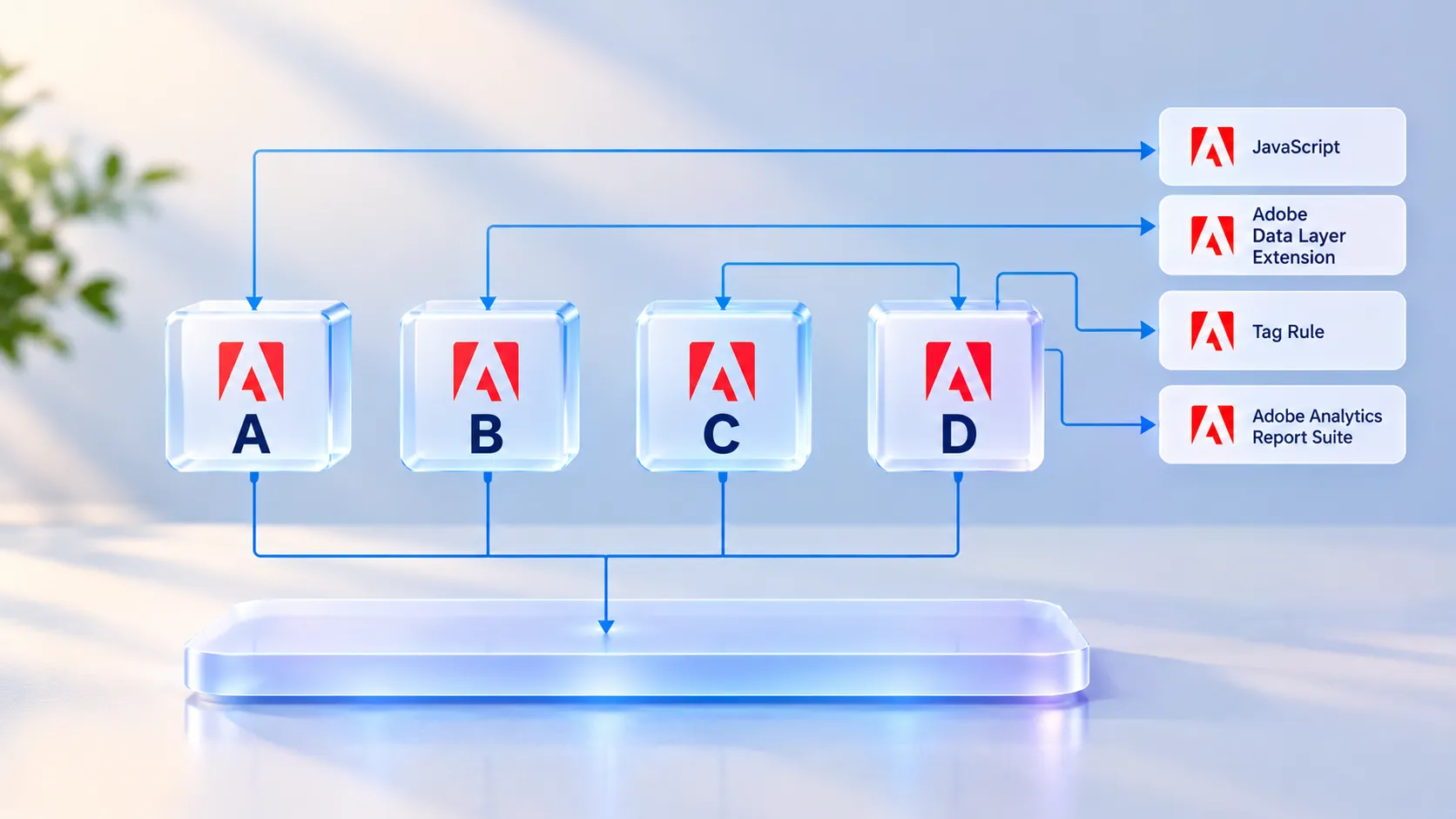
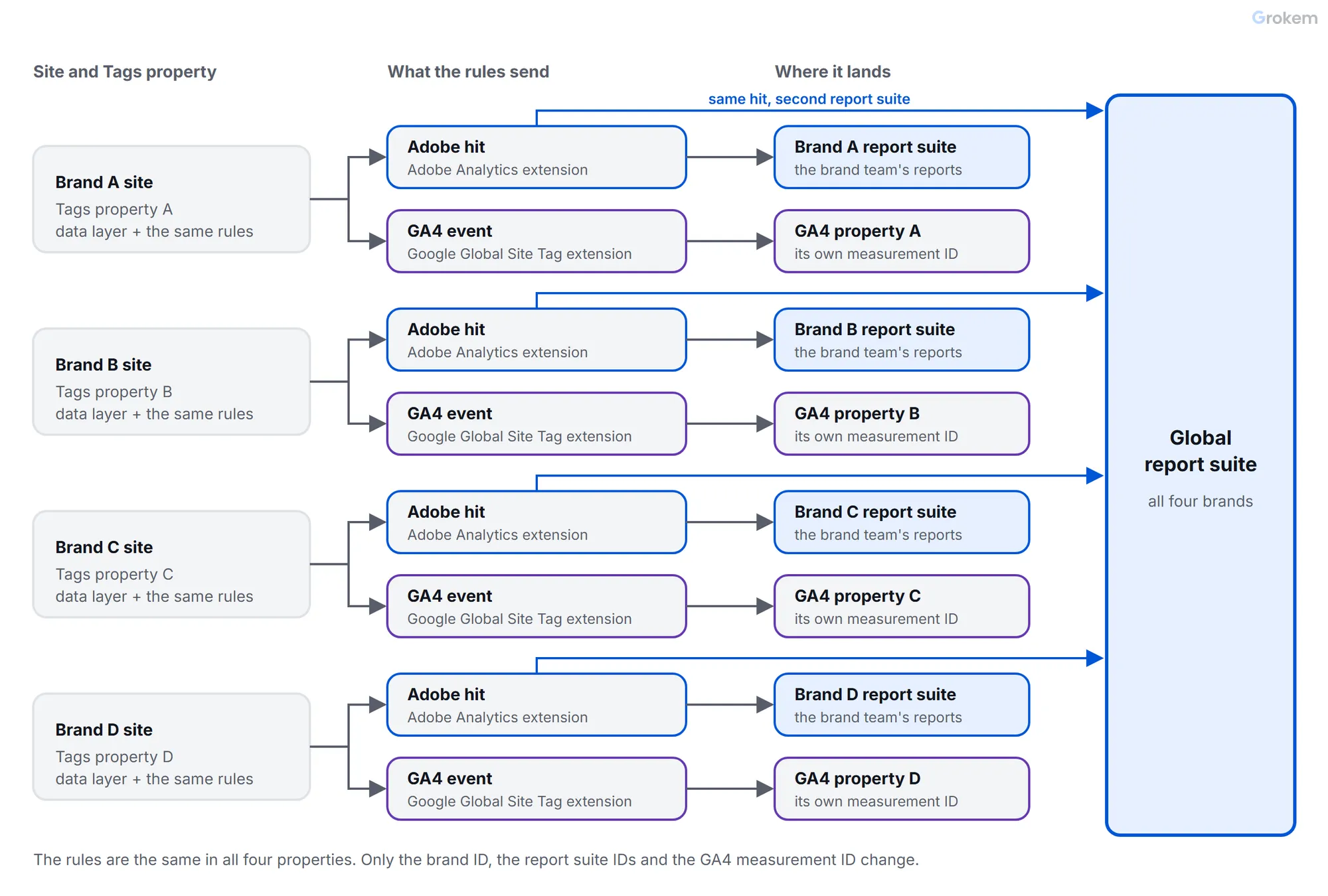
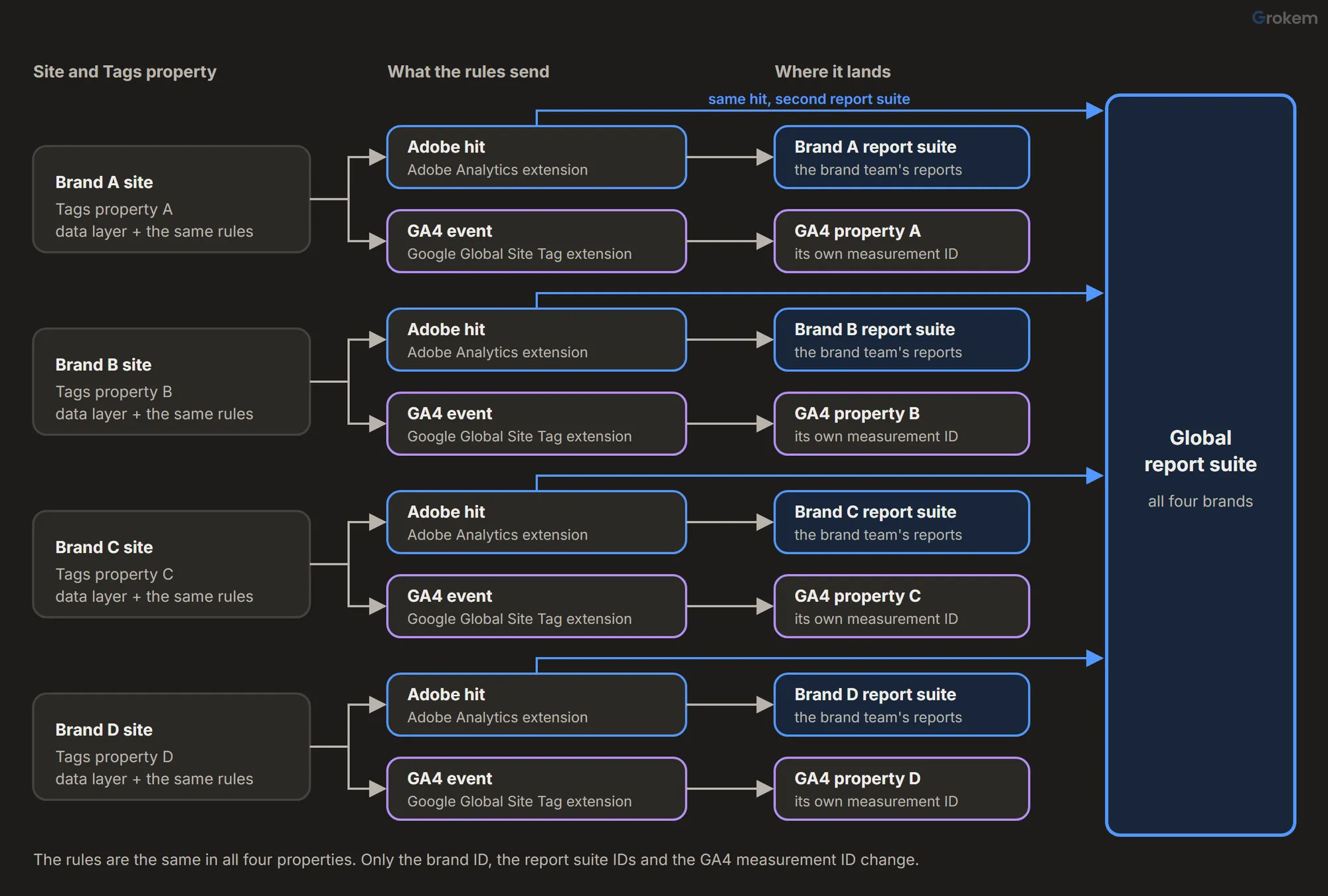
Four brand sites, one analytics team. This guide builds one pattern entirely inside Adobe Launch (Tags): each brand has its own Tags property; every Adobe Analytics hit goes to that brand's report suite and, in the same hit, to one shared Global report suite; and the same rules also send each brand's events to its own GA4 property. Brand teams get their own reports, and the group team gets all four brands in one place.
Two extensions do the work: the Adobe Analytics extension for the report suites, and the Google Global Site Tag (gtag) extension for GA4. The data layer, the naming, the variable map and the QA are the same in all four properties. The brands are called Brand A to Brand D, and every ID in the examples (grpbrandaprod, G-AAAAAAAAAA) is a placeholder for your own.
Check first: is multi-suite tagging the right tool? Adobe's guidance is that one Global report suite with virtual report suites (VRS) is often the better practice, because multi-suite tagging makes a primary server call to the Global suite and a secondary server call to every other suite in the hit. Keep multi-suite tagging when a brand needs something a VRS cannot give:
| A brand needs … | Use |
|---|---|
| Filtered reports of its own data only | Global suite with a VRS (no secondary calls) |
| Its own data feed | Multi-suite tagging (data feeds cannot use a VRS) |
| Revenue in its own currency | Multi-suite tagging (a VRS reports in its source suite's currency) |
| Its own partner integration account | Multi-suite tagging (integrations cannot be set up in a VRS) |
| Its own unique-value limits, so a small brand is not bucketed as "low traffic" | Multi-suite tagging (a VRS shares the source suite's limits) |
If none of these applies, start with the Global suite and VRS. If one does – the case this guide builds – use multi-suite tagging for the brand suites and the Global suite.
Labels note. Menu paths and field names in Adobe Analytics and Data Collection change from time to time. Where a step names an option, match it to what your interface shows.
The design needs these pieces. Build a full set for development first, then staging and production: the Analytics extension takes report suites per environment, and the Google extension takes an account per environment.
| Piece | How many | Example name |
|---|---|---|
| Tags properties | 4 | Brand A web … Brand D web |
| Global report suite | 1 per environment | grpglobalprod |
| Brand report suites | 4 per environment | grpbrandaprod … grpbranddprod |
| GA4 properties with a web data stream | 4 | measurement IDs G-AAAAAAAAAA … |
Step 1 of 9: Create the Global and brand report suites
The Global report suite is the one that receives every brand's hits: Adobe describes a global report suite as one that collects data from all the domains and apps your organization owns. A brand suite receives only its own brand's hits. Both are ordinary report suites; what makes one "global" is that every brand sends its hits to it as well.
You need access to Adobe Analytics through the Admin Console, which a system-level administrator grants. Then, for each environment, starting with development:
- In Adobe Analytics open Admin, then Report Suites, and select Add Report Suite.
- Choose a predefined template, or an existing report suite as the template. Only settings are copied, not data.
- Complete the report suite fields (Adobe lists them on a separate page; match them to your interface) and select Create Report Suite.
A report suite ID can be at most 40 bytes and the friendly name at most 255 bytes. Put the environment and the role in the ID, for example grpglobaldev for the Global suite and grpbrandadev to grpbranddev for the brands; the examples in this guide use that pattern, with stg and prod for the other environments.
Create the Global suite first and set it up completely: in its settings (Admin, Report Suites, Edit Settings), enable the eVars, props and success events from the variable map in step 2, with their allocation and expiration. Then create each brand suite with the Global suite as its template. Only settings are copied, so a brand suite arrives with the same variables enabled and a number means the same thing in all five suites. If Brand A used eVar2 for page type and Brand B used it for a campaign, the Global suite would mix unrelated values in one report. Compare the five suites once before you go on.
Wherever two suite IDs appear in this guide, the Global ID comes first. Adobe's best practice for multi-suite tagging is to list the Global report suite first. Repeat this step for staging and production when development works.
Step 2 of 9: Write the variable map and the data layer contract
Agree one table that every brand follows. Page names start with the brand, because the Global suite receives four sites that would otherwise all have a page called "home".
| Meaning | Data layer | Adobe Analytics | GA4 |
|---|---|---|---|
| Page name | page.name, for example brand-a:home |
Page name | page_title, collected automatically |
| Brand | page.brand |
eVar1 |
not needed: each property is one brand |
| Page type | page.type |
eVar2 |
optional custom parameter |
| Add to cart | event add-to-cart |
event scAdd and Products |
event add_to_cart with currency, value and items |
The pages push the same two objects on every brand's site. Use the Adobe Client Data Layer as in the step-by-step implementation guide linked at the end, and put the array above the Tags embed code:
<script>
  window.adobeDataLayer = window.adobeDataLayer || [];
  window.adobeDataLayer.push({
    event: "page-load",
    page: { name: "brand-a:home", type: "home", brand: "brand-a" }
  });
</script>
When a visitor adds a product to the cart, the page pushes a second event:
window.adobeDataLayer.push({
  event: "add-to-cart",
  product: { id: "SKU-1001", name: "Trail Backpack", price: 89.9, quantity: 1, currency: "EUR" }
});
Step 3 of 9: Build the shared data elements in the brand's property
In the Brand A property, install the Adobe Client Data Layer extension and create the data elements below. Everything in this table is identical in all four properties except the last row.
| Data element | Type | Setting |
|---|---|---|
| Page Name | Computed State | page.name |
| Page Type | Computed State | page.type |
| Product ID | Computed State | product.id |
| Product Name | Computed State | product.name |
| Product Price | Computed State | product.price |
| Product Quantity | Computed State | product.quantity |
| Product Currency | Computed State | product.currency |
| Product Total | Custom Code | return _satellite.getVar("Product Price") * _satellite.getVar("Product Quantity"); |
| Brand ID | Custom Code | return "brand-a"; |
Keep the brand name in this one data element. The rules contain no brand name, so building Brand B, C and D means changing Brand ID, the report suites in the Analytics extension and the account in the Google extension, and a copy-and-paste mistake has three places to hide, not dozens.
Step 4 of 9: Install the Adobe Analytics extension and set both report suites
In the Brand A property, open Extensions, then Catalog, find Adobe Analytics and install it. Then configure it:
- Under Library management, choose Manage the library for me. The other choices (use the library already on the page, load it from a custom URL, provide custom library code) also take report suites per environment, but this one needs no library file of your own.
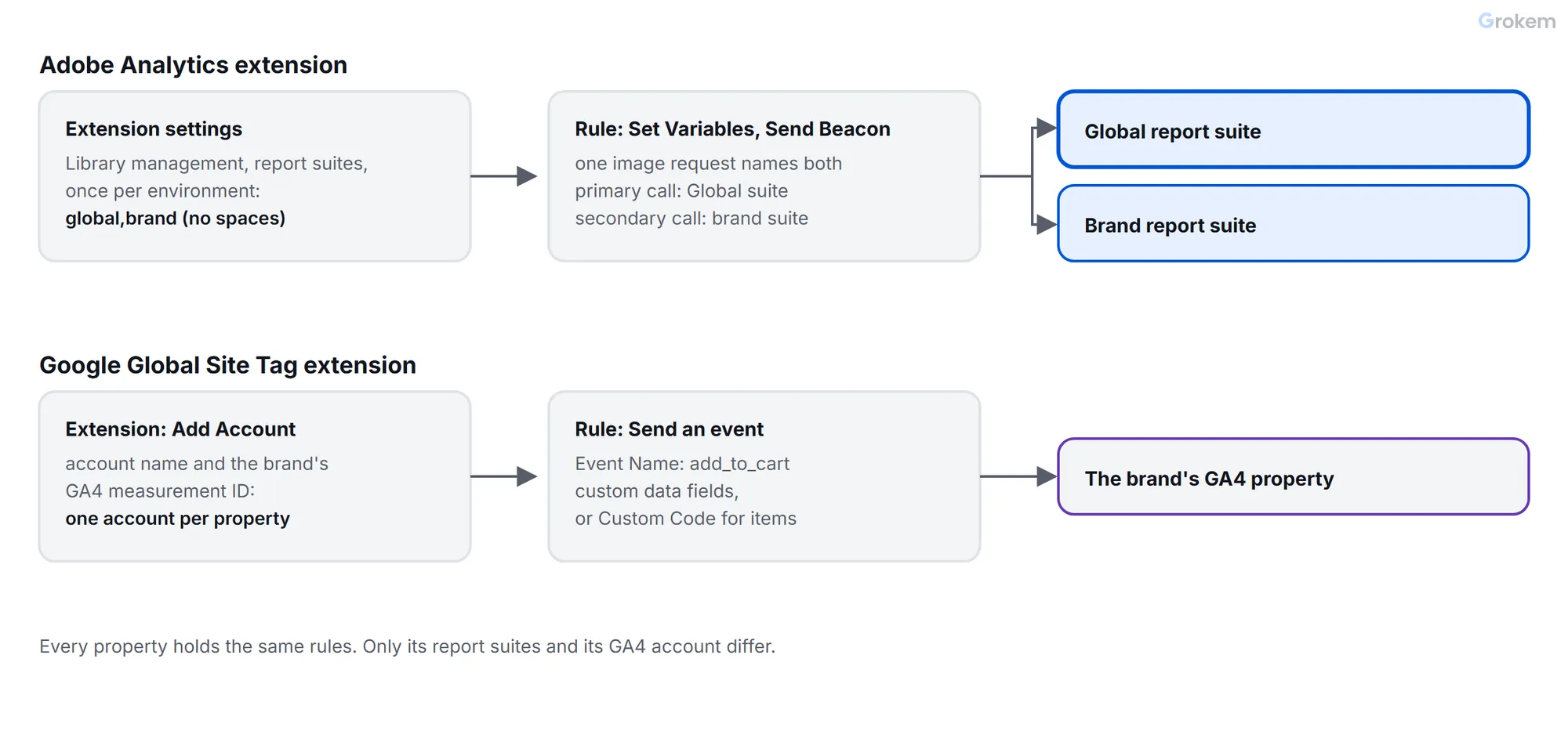
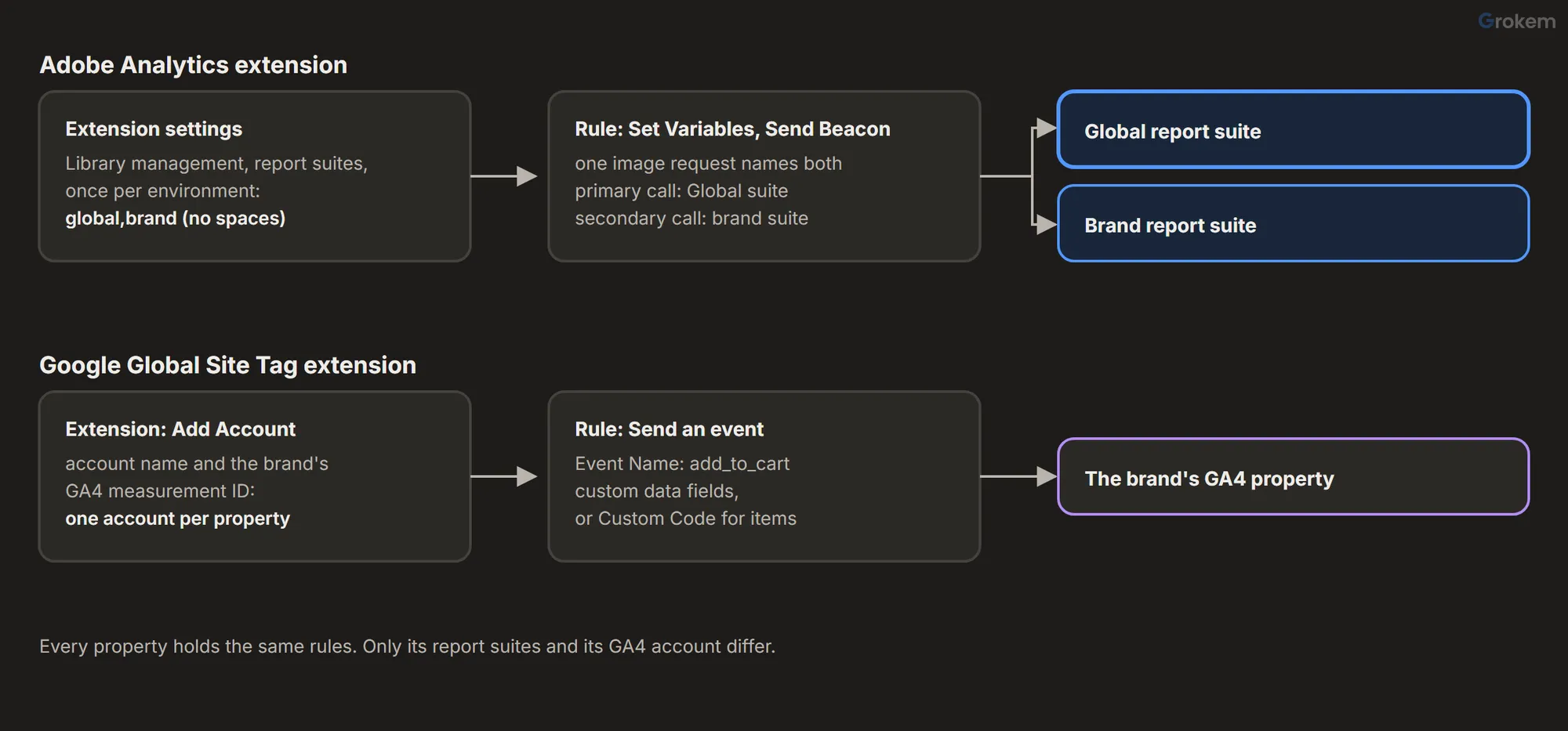
- In the report suite fields for Development, Staging and Production, specify the report suites. Enter the Global ID first and the brand ID second, separated by a comma with no spaces – the form Adobe documents for multiple report suite IDs:
| Environment | Report suites field (Brand A) |
|---|---|
| Development | grpglobaldev,grpbrandadev |
| Staging | grpglobalstg,grpbrandastg |
| Production | grpglobalprod,grpbrandaprod |
- Under General, set Currency Code to the currency the brand's site sends, because it sets the conversion rate for revenue and currency events. Leave Character Set at UTF-8 unless your site uses another encoding; Adobe recommends matching the site. If you use the Experience Cloud ID Service extension, leave Tracking Server empty: Adobe advises against filling it in then.
- Under Link Tracking, decide whether to track download links and outbound links. Each one you switch on adds link hits, so test them like the page view.
- Leave Global Variables empty for this setup. They set variables when the tracker starts on each page, which suits pages that send one beacon; Adobe recommends rules for single-page apps, and the rules in step 5 already set the brand.
Save the extension. A rule cannot change the report suite later, so these report suite fields are the single place to get right. (s.sa() in custom code can change it for a rare case such as a video suite, but it is not part of this architecture.)
Step 5 of 9: Send the page view and the add-to-cart event to Adobe Analytics
Create a rule named Adobe – Page view. Use the Adobe Client Data Layer Data Pushed event for the specific event page-load. Add two actions from the Adobe Analytics extension. Set Variables fills the variables, and Send Beacon sends them: the extension does not send a beacon from Set Variables.
| Action | Setting |
|---|---|
| Set Variables | Page name %Page Name%, eVar1 %Brand ID%, eVar2 %Page Type% |
| Send Beacon | Page view, the option that increments a page view (s.t()) |
Create a second rule, Adobe – Add to cart, on the Data Pushed event add-to-cart:
| Action | Setting |
|---|---|
| Set Variables | Events scAdd (Cart Add), eVar1 %Brand ID%, Products ;%Product ID%;%Product Quantity%;%Product Total% |
| Send Beacon | Custom link, the option that does not increment a page view (s.tl()), with a link name such as Add to cart |
The Products value follows the Adobe Analytics product syntax: category (empty here), product, quantity and total price. The price is the total for the quantity, which is why step 3 built Product Total. Set eVar1 in this rule too, so the link hit carries the brand.
Because the report suites are set in the extension, both rules send to the Global suite and the brand suite without any further setting.
Step 6 of 9: Install the Google Global Site Tag extension and add the brand's GA4 account
In the Brand A property, open Extensions, then Catalog, find Google Global Site Tag (gtag) and install it. Adobe's page says the extension sends data to Google Analytics, Google Ads and the Google Marketing Platform through gtag.js, and that installing extensions needs the manage_properties permission. It also lists the extension under Destinations, then Catalog.
During the installation, select Add Account. Adobe's Google Ads walkthrough fills this dialog with an account name, an account ID and a product. For GA4, give the account a name such as Brand A GA4, choose the Google Analytics 4 product if your list offers it, and enter Brand A's measurement ID (G-AAAAAAAAAA) as the account ID. If your interface asks for the account per environment, enter the development, staging and production measurement IDs; use a development GA4 property for development if you have one, so that test events stay out of the live reports.
Adobe notes that multiple accounts per product can be configured. In this architecture each property holds one GA4 account: its own brand's. That is what keeps Brand B's events out of Brand A's property.
Step 7 of 9: Send the add-to-cart event to GA4
You do not need a rule for the page view: once the extension has loaded gtag.js with the brand's measurement ID, GA4 collects page_view itself (see the section on what is recorded before any rule). Sending it from a rule as well would count every page twice.
Add the business event to the existing rule Adobe – Add to cart. Adobe's walkthrough for the same extension shows the flow: in the rule, select Add under Actions, choose Google Global Site Tag (gtag) from the Extension dropdown, and select Send an event under Action Type. Then fill in the event:
| Field | Value |
|---|---|
| Event Name | add_to_cart |
Custom data field currency |
%Product Currency% |
Custom data field value |
%Product Total% |
Place the action below the Adobe actions: actions in one rule run in the configured order. The Google Ads walkthrough adds custom fields as a key and a data element, which is how the two fields above are entered.
GA4 expects the products of an ecommerce event in items, an array of objects. A field that holds one key and one value cannot express that. If your interface cannot build the array, send this one event with a Custom Code action instead. The extension has already added the gtag code, so the code calls gtag directly:
if (window.gtag) {
  gtag("event", "add_to_cart", {
    currency: _satellite.getVar("Product Currency"),
    value: Number(_satellite.getVar("Product Total")),
    items: [{
      item_id: _satellite.getVar("Product ID"),
      item_name: _satellite.getVar("Product Name"),
      price: Number(_satellite.getVar("Product Price")),
      quantity: Number(_satellite.getVar("Product Quantity"))
    }]
  });
}
Use either the extension action or this code for the event, not both. Each property has one GA4 account, so every event goes to that brand's property by default and no send_to is needed. If you later add a group-level GA4 property, give both IDs to a group with gtag("config", id, { groups: "brand" }) and route the events with send_to: "brand"; a group name cannot contain a dash.
Step 8 of 9: Build, publish to development and repeat for each brand
Open Publishing, select the development library, add all changed resources, save and build it. Load a development page of Brand A that has the Brand A development embed code.
Then build Brand B, C and D the same way. Before you publish any of them, compare the four properties: the rules, the data elements and the extension settings should match, apart from Brand ID, the report suites in the Analytics extension and the account in the Google extension. Do the QA below for each brand, then repeat the whole sequence for staging and production, with their own suites and GA4 accounts.
Step 9 of 9: Verify the hits in the browser
Check the hit before you check the reports, because the reports lag.
Adobe Analytics. Open the developer tools, select the Network panel, reload and filter for /b/ss/. The request path after /b/ss/ holds the report suite IDs: it should show the Global ID, a comma and the brand ID. The browser sends one image request. Adobe's servers then make a primary call to the Global suite and a secondary call to the brand suite.
GA4. Use Google Tag Assistant for the test: it adds a parameter to the page address that turns on debug mode. In GA4, open Admin, then Data display, then DebugView. The seconds stream shows the events of the last 60 seconds: expect one page_view per page and an add_to_cart with its parameters after the click.
Reports. Adobe's processing is not instant. Allow about two hours before comparing report suite totals.
What is recorded before any rule sends anything
Once the two extensions are installed and the library is published, this is what each destination records without any rule or custom event.
Adobe Analytics (brand and Global suites). Nothing, in the sense that matters: a hit leaves the page only when a rule's Send Beacon action runs, and Set Variables and Global Variables only fill variables. The one thing to check is Link Tracking in the extension. If Track download links or Track outbound links is on, those clicks send link hits on their own; Adobe's page names the options but states no default, so look at both checkboxes in each property. After a beacon is sent, Adobe adds some data on its own servers without any variable from you: the geography from the visitor's IP address, the browser from the user agent, and a page name taken from the page URL when you leave the page name empty. Everything else – the brand eVar, the page type, the Cart Add event – is empty until a rule sets it.
GA4 (each brand's property). More than Adobe, because the gtag code reports by itself once it is loaded with the measurement ID. Google lists these web events as collected automatically:
| Event | Logged when |
|---|---|
first_visit |
a user visits the site for the first time |
session_start |
a user engages with the site |
user_engagement |
a page is in focus for at least one second |
page_view |
a page loads or the browser history state changes |
click |
a user clicks a link that leads to another domain |
file_download |
a user clicks a link to a file with a common extension |
form_start, form_submit |
a user first interacts with a form in a session, and submits one |
scroll |
a user first reaches the bottom of a page |
video_start, video_progress, video_complete |
an embedded YouTube video starts, passes 10, 25, 50 and 75 per cent, and ends |
view_search_results |
a user performs a site search |
From click onwards these are the Enhanced measurement options of the web data stream, which you can switch off one by one in the stream's settings; page_view cannot be switched off. Check the Enhanced measurement switch in each GA4 stream, because it decides which of these arrive. Every event carries language, page_location, page_referrer, page_title and screen_resolution.
Ecommerce events such as add_to_cart and purchase are not on that list. They are recorded only when something sends them, which is what step 7 does.
QA checklist
Run this for each brand, in development first.
| Check | How | Expected |
|---|---|---|
| Both suites named in the hit | Network panel, path after /b/ss/ |
The Global and brand IDs of the development environment |
| Variables line up | Admin, each of the five suites | The same eVars, props and events enabled, with the same numbers |
| Brand suite is clean | Brand A suite, breakdown by eVar1 |
Only brand-a |
| Global suite has all brands | Global suite, breakdown by eVar1, after all four brands fire |
brand-a to brand-d |
| Page names do not collide | Global suite, Pages report | Every name starts with its brand |
| One Adobe hit per page view | Network panel, one page load | One page view request |
| Add to cart in Adobe | Click the button | Cart Add event and the product in both suites |
One GA4 page_view per page |
DebugView, one page load | A single page_view |
| Add to cart in GA4 | DebugView after the click | add_to_cart with currency, value and items |
| Link tracking is intended | Click a download and an outbound link | Link hits only if you switched link tracking on |
| GA4 stays with its brand | DebugView of each GA4 property | Only that brand's events |
| Environments are separate | Development page and the production suites and properties | No development hits in production |
| Brand values are right | Brand ID, the report suites and the GA4 account in each property |
Each property has its own brand, suites and measurement ID |
| Totals agree | Global page views against the sum of the four brand suites, after processing | The same figure, within normal processing time |
Expected result
In the development environment, one page load on a Brand A page produces one Adobe page view request: in the Network panel the path after `/b/ss/` holds the Global ID and the Brand A ID. Clicking the add-to-cart button sends a second request with the Cart Add event and the product to both suites. GA4 DebugView for Brand A's property shows one `page_view` and one `add_to_cart` with its parameters, and no other brand's property shows them. After processing, the Global suite shows `brand-a` to `brand-d` when you break a report down by `eVar1`, and each brand suite shows only its own brand.
Troubleshooting
| Problem | Likely cause | Fix |
|---|---|---|
| The Global suite shows nothing, but the brand suite does. | The report suite field has a typo, a space after the comma, or the Global ID is missing from the environment you are testing. | Open the request (the path after /b/ss/ in the Network panel) and compare the IDs character by character with Admin, Report Suites. Separate the IDs with a comma and no spaces. |
| Server call counts are higher than expected after the change. | Multi-suite tagging makes a primary server call to the Global suite and a secondary server call to each other suite in the hit. | Expect it and plan for it with your Adobe contract. If no brand needs its own feed, currency, integration or unique-value limits, move the brand views to virtual report suites and keep only the Global ID in the extension. |
| The Set Variables action ran, but no hit reached Adobe. | Set Variables only fills the variables. It does not send a beacon. | Add a Send Beacon action after it: the page view option for a page, the custom link option for an event such as add to cart. |
| The Global suite mixes values: an eVar means one thing for Brand A and another for Brand B. | The brand suites enabled variables with different numbers or settings, and the Global suite receives all of them. | Keep one variable map for all five suites (step 2), create the brand suites from the Global suite as their template, and correct the brand that deviates. Do not reuse a number for a different meaning. |
| In the Global suite the Pages report shows one "home" for all four brands. | The page name is the same on every site, so the four sites collapse into one line. | Start every page name with the brand (`brand-a:home`) in the data layer, or break the report down by the brand eVar. |
| Development tests fill the production report suites or the live GA4 property. | The development environment lists production suite IDs or the production measurement ID, or the test page loads the production embed code. | Give each environment its own suites and its own GA4 account in the extensions, check which embed code the test page loads, and compare the IDs in the request before you publish. |
| Download and outbound link hits appear without a rule. | Track download links or Track outbound links is switched on in the Analytics extension. | Decide whether you want them. Switch the options off, or test the hits the way you test the page view; Adobe's page names the options but gives no default, so check both in every property. |
| GA4 shows two page views for every page. | A rule also sends a page_view event, while the Google tag already collects page_view itself, or a second Google tag on the page does. | Do not send page_view from a rule. Keep one Google tag per page for each measurement ID, and look at DebugView for a single page_view per page. |
| Brand B's events show up in Brand A's GA4 property. | A copied property still holds Brand A's account and measurement ID in the Google extension, or a page loads two properties' code. | Open the Google Global Site Tag extension in every property and check its account, then open DebugView of each GA4 property while you test the other brands. |
| The add_to_cart Custom Code action does nothing. | The gtag function is not defined yet when the code runs, for example because the extension is missing from the property or the rule fires before it. | Check that the Google extension is installed and published in the library you test, keep the `if (window.gtag)` guard, and look for the event in DebugView. |
| The request is in the Network panel, but the reports are empty. | Adobe processes hits before they appear in reports, or the variables are not enabled in that suite. | Allow about two hours, then check in Admin that the eVars, props and events are enabled in that report suite. |
Frequently asked questions
Can I use virtual report suites instead of multi-suite tagging?
Often yes, and Adobe calls it a best practice: one Global suite with a virtual report suite per brand removes the secondary server calls. Keep multi-suite tagging when a brand needs its own data feed, its own currency, its own partner integration account or its own unique-value limits, because a virtual report suite cannot provide them.
How many report suites can one hit go to?
This guide sends each hit to two. Every extra suite adds a secondary server call, so keep the list short. Ask Adobe or check your contract for the maximum and for how secondary calls are counted.
Does the Global suite count a hit twice because it goes to two suites?
No. Adobe states that the global report data is deduplicated across the report suites in the hit, so each hit counts once in the Global suite. Whether one person who visits two brand domains counts as one visitor depends on how visitors are identified on each domain, so check that before you report on cross-brand visitors.
Can a rule choose the report suite for one page?
Rules in the Analytics extension cannot change the report suite: set the suites in the extension's Library management. For a rare case, such as a video suite, `s.sa()` in custom code can change it, but it is not part of this architecture.
Can one GA4 property hold all four brands instead?
Yes, but it is a different design: the brands then share one property and its limits. With the Google tag you can also keep four properties and add a group-level one: give the IDs a shared `groups` value in the config calls and send events with `send_to` set to that group. A group name cannot contain a dash.
Should I send the GA4 events with the Google extension or with Custom Code?
Use the extension's Send an event action for events with simple fields: it keeps the setup in the rule editor. Use Custom Code for an ecommerce event that needs the `items` array, because a key and value field cannot build an array. The extension adds the gtag code to the page, so the code calls `gtag` directly.
Do the four brands need different rules?
No. Keep the rules identical and the brand name in one data element, `Brand ID`; the suites live in the Analytics extension and the measurement ID in the Google extension. That makes a rule fix a copy-and-compare job instead of four separate edits.
References
- Implementing multi-suite tagging
- Virtual report suites and multi-suite tagging considerations
- Global report suites
- Create a report suite
- Adobe Analytics extension overview
- Core extension overview (Custom Code, Direct Call)
- Google Global Site Tag (gtag) extension
- Google Ads Enhanced Conversions extension overview (the gtag Send an event flow)
- Automatically collected events in Google Analytics
- Enhanced measurement events in Google Analytics
- DebugView in Google Analytics
- Group and route data with the Google tag
- s.sa() method
From Grokem: https://www.grokem.com/data/data-analytics/tag-management/multi-brand-adobe-launch-global-and-brand-report-suites-with-ga4