
A Tags property (the product formerly called Adobe Launch) is easy to build up and hard to see in one piece: rules added by different people, data elements nobody removed, extensions for tools the company stopped using, an embed code on pages nobody remembers. This review looks at one property in nine checks, in an order that finds data problems before tidiness problems, and ends in a score you can compare next quarter.
Adobe's documentation describes each feature on its own page, but no page puts them into an audit order. This review does, and each check names the page it rests on. It uses only what Tags, the Experience Platform Debugger and the browser's developer tools show you; nothing is changed until the last section.
Before you start
You need:
- View access to the property's Rules, Data Elements, Extensions, Environments and Publishing Flow screens. Change rights are not needed for the review itself.
- The Adobe Experience Platform Debugger in your browser, and the browser's developer tools.
- A page on each site that carries the property, so you can test what really runs, not only what the screens say.
- A blank copy of the scorecard below. Half a day is a fair allowance for a property with a few dozen rules; a large one takes longer, and that is itself a finding.
How the scorecard works
Each check gets a score: 2 when it passes, 1 when it passes with named exceptions, 0 when it fails or you cannot tell. Nine checks give a score out of 18. "Cannot tell" scores 0 on purpose: an audit that cannot answer a question has found the problem.
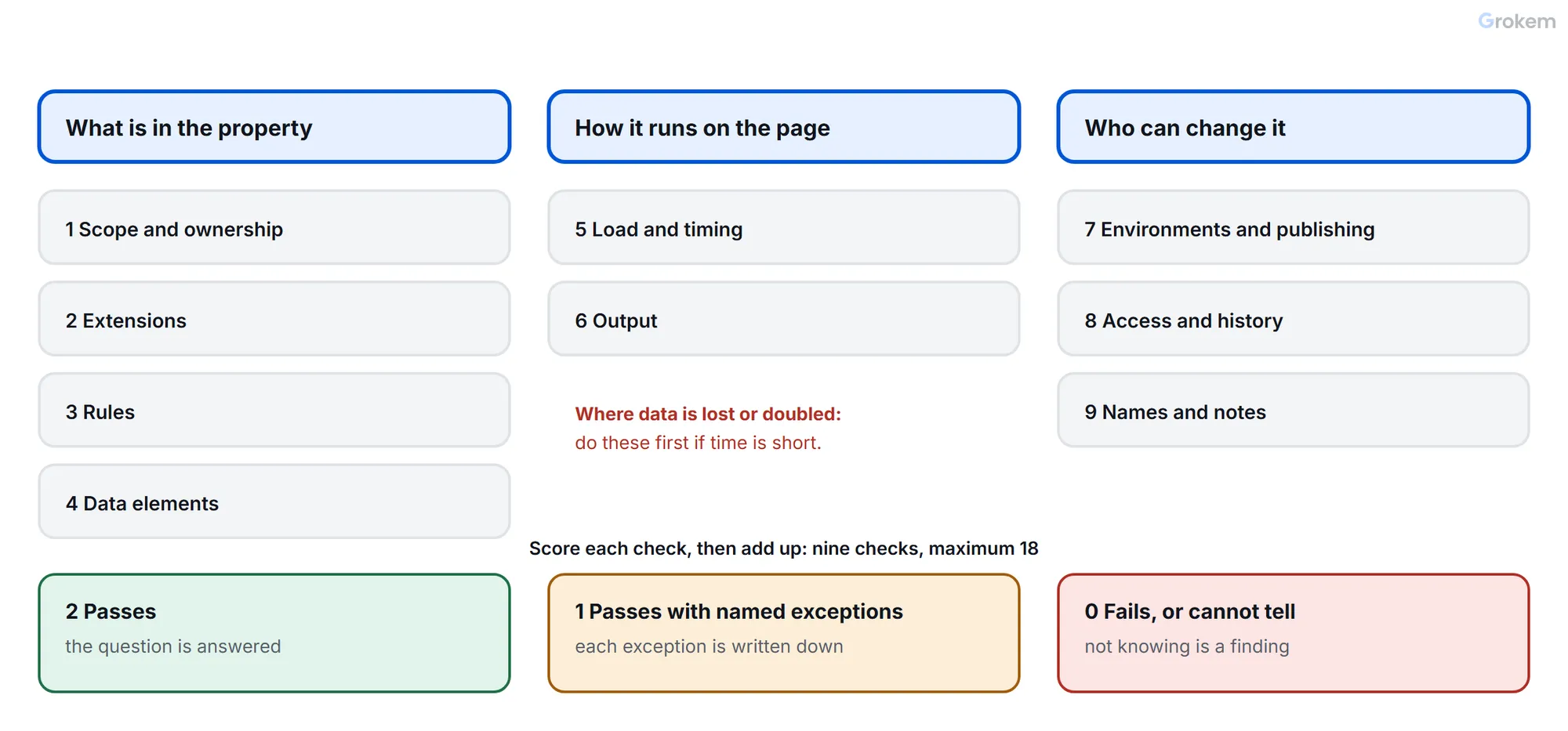
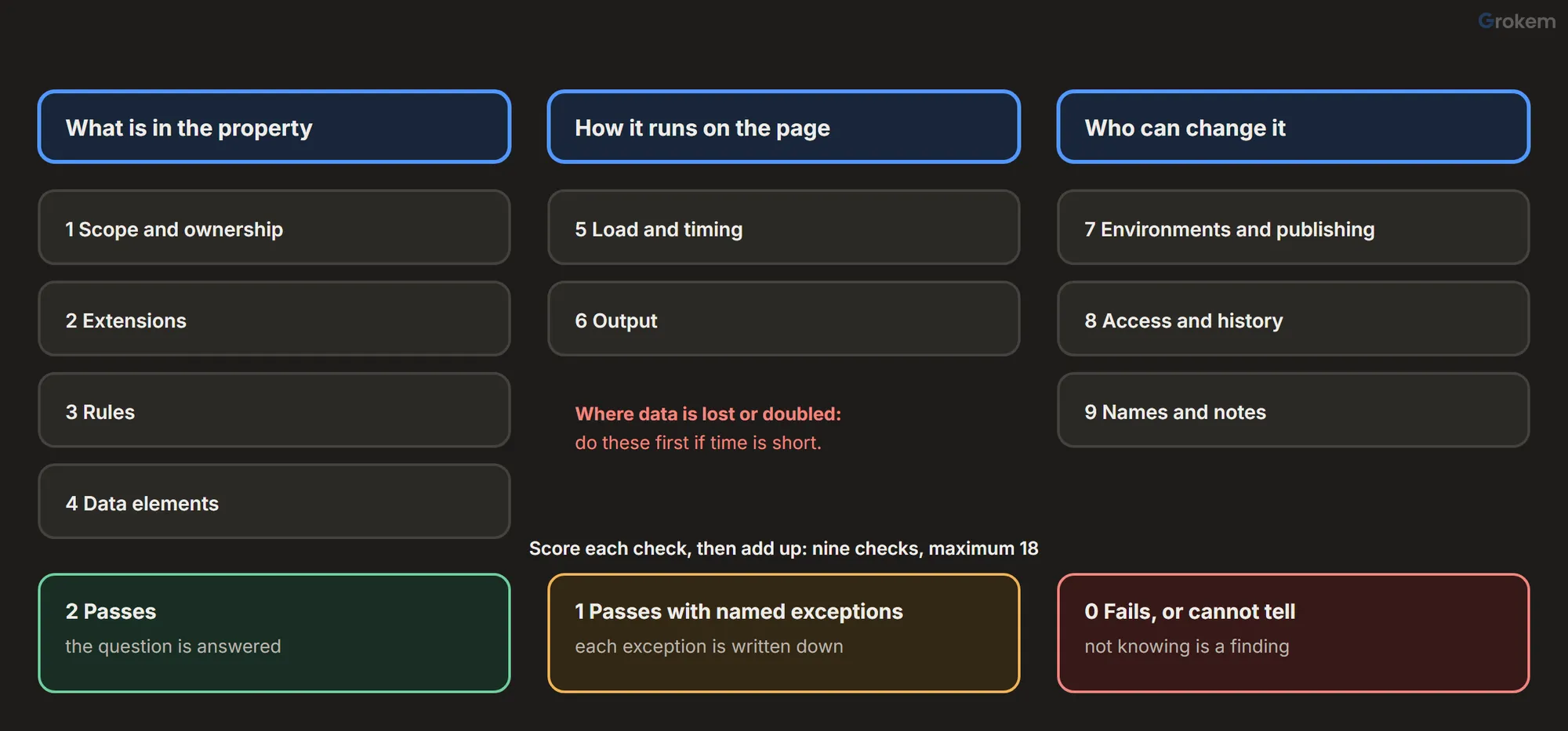
| # | Check | Group | What you look at |
|---|---|---|---|
| 1 | Scope and ownership | What is in the property | Which sites load the embed code, who owns it |
| 2 | Extensions | What is in the property | Installed extensions, versions, who uses them |
| 3 | Rules | What is in the property | Names, duplicates, events, order numbers |
| 4 | Data elements | What is in the property | Types, defaults, storage duration, unused ones |
| 5 | Load and timing | How it runs on the page | Embed code, event choices, data layer timing |
| 6 | Output | How it runs on the page | The beacons the page really sends |
| 7 | Environments and publishing | Who can change it | Environments, library states, build dates |
| 8 | Access and history | Who can change it | Rights, audit logs, revisions |
| 9 | Names and notes | Who can change it | Naming pattern, notes, documentation |
Do the checks in this order. Checks 5 and 6 are where data gets lost or doubled, so do not leave them to the end if you are short of time: swap them forward.
Check 1: Scope and ownership
A web property has its own embed code and can be deployed to several domains and subdomains, according to Adobe's page on companies and properties. The first question is therefore not "what is in it" but "who loads it".
Look at: the company and property list; the property's domains; one page of every site you expect, using View Source to find the embed code's script address.
Passes when: every site that loads the property is known and intended, and one named person or team owns the property.
Red flags: a site you did not expect loading the library; two embed codes of different properties on one page; a property with no owner.
Fix: write the list of sites and the owner at the top of your record (see the last section). Decide whether the property should serve all of those sites at all: one property or one per brand covers that decision.
Check 2: Extensions
Every extension adds code and settings to the library, and each has its own versions. The release notes of the Adobe Analytics extension, for example, tie each extension version to an AppMeasurement version and record fixes, such as one for a clearVars issue in 2019. Which version you have decides which fixes you have.
Look at: the installed extensions and their version numbers. For each one, ask which enabled rules and data elements use it.
Passes when: every installed extension is used by something, and the version of each one is known, with a reason for any version that is not current.
Red flags: an extension for a tool the company no longer uses; two extensions that do the same job; an old version nobody can explain.
Fix: confirm with the owner of each unused extension, then check what depends on it before removing it. A rule or data element that still needs an extension keeps depending on it even if it was uninstalled; Adobe's page on copying resources notes that required extensions are copied along with rules and data elements for exactly that reason.
Check 3: Rules
Look at: the rules list. Count the rules and read every name. Open the rules in groups by trigger and look for:
- two rules with the same event that do the same thing;
- rules with several events: any one of the specified events triggers the rule, so a rule with Library Loaded and Window Loaded runs twice on a page that sends both;
- order numbers other than 50, which is the default for every rule component; lower numbers run first, rules with the same order run in no particular order, and the order only applies between rules that share an event;
- Custom Code actions, which are the hardest part to review and the likeliest place for hidden dependencies;
- rules with exceptions (a NOT condition), which are easy to forget when a page changes.
Passes when: each rule does one job and its name says which; no two rules send the same beacon; every order number other than 50 has a reason you can state.
Red flags: names such as "Page view copy" or "test 2"; two page view rules; several rules at order 50 where one depends on another's result. Rules fire in order but do not necessarily finish in that order, so a dependency between two asynchronous rules is a bug waiting for a slow day.
Fix: merge duplicates, give a dependency an explicit order, and read why a data element is empty for the timing side of it.
Check 4: Data elements
Look at: the data elements list. For each element note the type, whether a default value is enabled, the storage duration, and the Force lowercase and Clean text options. Open every Custom Code element and read it. Then check the property setting Return an empty string for missing data elements: when it is on, a reference to a data element that does not exist returns an empty string instead of undefined.
Storage duration decides how long a value lives:
| Setting | The value is held |
|---|---|
| None | Not stored |
| Page view | In a JavaScript variable until the page refreshes or a new page loads |
| Session | In session storage until the browser tab is closed |
| Visitor | Indefinitely in the browser's local storage |
Passes when: every data element has at least one reader; storage duration was chosen on purpose, with None for page-specific values such as a page name; defaults exist only where a report needs them.
Red flags: a value that changes on every page but is stored for the visitor, so an old value comes back on a page that has none; ten elements that read the same page element; elements nobody references.
Finding the unused ones. Adobe's pages describe no "where used" view for data elements; the rule editor offers a search box and nothing more. Two ways remain. By hand: open each rule and note the %name% references. Faster: the Reactor API lists a property's data elements (GET /properties/{PROPERTY_ID}/data_elements) and the components of each rule, so a script of your own can look for each element's name inside the rule component settings and the custom code. That needs an access token, an API key and your organization ID in the request headers: keep them out of shared documents. A text search is a first pass, not proof: custom code on the page itself can also read an element with _satellite.getVar, and a search of the property cannot see that.
Check 5: Load and timing
Look at: View Source for the embed code. Adobe documents loading a library asynchronously by adding the async attribute to the script tag, and for an asynchronous embed the Page Bottom event type adds little and _satellite.pageBottom() should no longer be called: a call to it results in an error, according to the same page. Then look for rules that read the data layer on Library Loaded: Adobe warns that such a rule might run before the data layer is fully loaded, and recommends the Custom Event or Direct Call event type instead.
Also notice where rules run. Rules whose event is Library Loaded or Page Top are bundled into the main library file, the one the embed code points to; actions for other events are loaded as needed. A heavy action on Library Loaded makes the first file larger.
Passes when: the embed code is asynchronous, no page calls _satellite.pageBottom(), no rule uses Page Bottom, and every rule that reads page data fires on an event that comes after the data exists.
Red flags: a synchronous embed that nobody chose; Page Bottom rules left over from an older setup; Library Loaded rules that read a data layer the page fills later.
Fix: move the rule to an event that follows the data, or have the page announce readiness with a Direct Call.
Check 6: Output
This is the check that settles arguments. Choose five pages and five actions that matter to reporting and look at what leaves the browser.
Look at: the Debugger's Analytics view and the browser's Network panel, filtered for /b/ss/, on a page load and on each action. Turn on the library's own messages in the console:
_satellite.setDebug(true); // then reload: rule, extension and data element messages appear in the console
The setting is stored for the page's origin and stays on across reloads until you turn it off with _satellite.setDebug(false). Each log line starts with a rocket symbol followed by the rule, extension or data element name in brackets. The logs show that code ran, not that a request reached Adobe, so confirm in the Network panel.
Passes when: each page view sends exactly one page view beacon, each action sends the beacon the solution design describes, and the variables match the design.
Red flags: two identical beacons per page; a variable that is missing on one page type; a beacon that carries the value of the previous page. Duplicate page views has the causes and fixes.
Check 7: Environments and publishing
Every property starts with Development, Staging and Production environments. A library begins in Development, moves to Submitted for testing in staging, then to Approved, and becomes Published when it goes live in production.
Look at: the Environments screen and the Publishing Flow. Then check, on real pages, which environment each embed code points to, and read the live library's build date in the console:
_satellite.buildInfo; // minified flag, buildDate, turbineBuildDate and turbineVersion of the live build
Passes when: each environment is used for its purpose, the production build date matches your last published library, and you know how to go back. Adobe's page does not describe a rollback feature; the options it describes are to republish one of the last five published libraries (with conditions on the production environment's settings) or to create a new library and take it through the whole flow.
Red flags: a development embed code on a live page; libraries stuck in Submitted or Approved for months; a live build much older than the changes waiting in Development.
Check 8: Access and history
Publishing rights are split in three: Develop (create libraries, build for development, submit for approval), Approve (build for staging and approve staged builds) and Publish (publish an approved library). They are per property and not inclusive, so one person needs all three in the same property to run the whole flow.
Look at: who holds each right on the property. Then look at the history: selecting a company in the UI shows its audit logs, and the Reactor API's /audit_events endpoint returns the change records for properties your organization owns, named in the pattern {RESOURCE_TYPE}.{EVENT}, such as rule.updated or build.created, with the user's name and email. For one rule, data element or extension, Compare Revisions (from the three dots next to Save) shows what changed between revisions.
Passes when: every user with a right still works on the property, you can say who may publish to production, and the recent changes in the log are ones you can explain.
Red flags: people who left the team but kept Publish; one person holding all three rights on a property that serves a large site; changes by a user who has no reason to make them.
Check 9: Names and notes
Look at: whether a stranger could tell from a rule's name when it runs and what it does. Adobe's own tutorial names rules by where and when they fire, for example "All Pages - Library Loaded". Adding the purpose, and the order number when it is not the default 50, makes the name explain more, and puts the order where a reviewer can see it: "All Pages - Library Loaded - set variables - 20" is a name of that kind.
Passes when: names follow one pattern; the reason for each non-default order number can be found; there is a place, even a shared page, that says what the property is for.
Red flags: names that describe the person who made the rule, or the date; "final", "new" and "copy".
Fix: rename in small batches and note each change; renaming is the cheapest improvement in the whole review.
Reading the score
| Score | A reasonable reading |
|---|---|
| 16–18 | Healthy. Repeat in three months. |
| 12–15 | Works, with a short list of fixes. Do the fixes before adding new features. |
| Below 12 | Treat it as a clean-up project before anything new is added. |
The bands are a suggestion, not an Adobe rating. What matters more is the order of the fixes:
- Anything that loses or doubles data: checks 5 and 6, and duplicate rules from check 3.
- Anything that lets the wrong thing go live: checks 7 and 8.
- Tidying: checks 1, 2, 4 and 9.
What to record
Keep one page per audit: the date, the property and its owner, the sites it serves, the build date from _satellite.buildInfo, the number of rules, data elements and extensions, the nine scores, the three fixes you will make first and the date of the next review. A score that is compared with the last one is worth more than a score on its own.
Run the review again after a migration, after a change of team, and at least every quarter for a property that sends data to reports other people rely on.
Checklist
- Every site that loads the property's embed code is known and intended.
- The property has one named owner.
- No page carries the embed codes of two properties.
- Every installed extension is used by an enabled rule or data element.
- The version of each extension is known, with a reason for any old one.
- No two extensions do the same job.
- Every rule has a name that says when it runs and what it does.
- No two rules send the same beacon.
- Every order number other than 50 has a stated reason.
- Rules that depend on each other are not left at the same order.
- Every Custom Code action has been read.
- Every data element has at least one reader.
- Storage duration was chosen on purpose: None for page-specific values.
- Default values exist only where a report needs them.
- The property setting for missing data elements is known and intended.
- The embed code is asynchronous and no page calls _satellite.pageBottom().
- No rule uses the Page Bottom event on an asynchronous embed.
- Rules that read the data layer fire after the data exists.
- Each page view sends exactly one page view beacon.
- Variables in the beacons match the design on five pages and five actions.
- Each environment is used for its purpose; no development embed code on a live page.
- The live build date matches the last published library.
- You know how to go back: republish a recent library or build a new one.
- Develop, Approve and Publish are held only by current staff, and you know who may publish.
- Recent changes in the audit log are explained.
- Rule and data element names follow one pattern.
- A page says what the property is for and whom to ask.
- Scores, date and the top three fixes are recorded, and the next review is set.
Frequently asked questions
Does Adobe offer an official audit tool or checklist for Tags properties?
Adobe's documentation describes the features this review uses, including audit logs, revisions and the publishing flow, but no page that lays them out as an audit. This review is built from those pages. Third-party tools exist, and they check pages from the outside, which is useful for the output check but not for the contents of the property.
How often should a property be audited?
At least every quarter for a property that feeds reports other people rely on, and after a migration, a change of team or a large release. Keep the score of each run: a trend is more useful than a single number.
Do I need edit rights to run the review?
Reading the rules, data elements, extensions, environments and publishing flow needs only view access to the property. Checking the output on pages needs a browser and the Debugger. Which audit logs you can see may depend on your role, so check that first.
Does the review apply to a property that uses the Web SDK?
Most checks do: scope, extensions, rules, data elements, load timing, publishing and access work the same way. In the output check, the requests you inspect are different, because the Web SDK does not send the Analytics image request that this guide describes.
What should I fix first?
Anything that loses or doubles data: load and timing, the output check and duplicate rules. Then anything that lets the wrong thing go live: environments, publishing rights and access. Tidying names, extensions and data elements comes last.
References
- Properties (companies and properties) – Adobe
- Rules – Adobe
- Data Elements – Adobe
- Publishing flow – Adobe
- Asynchronous deployment – Adobe
- Compare Resource Revisions – Adobe
- Core extension overview – Adobe
- Audit events endpoint – Adobe
- Data elements endpoint – Adobe
- Copy Resources – Adobe
- Debugging methods – Adobe
- setDebug() – Adobe
- buildInfo – Adobe
- Release notes for the Adobe Analytics extension – Adobe
- Add a data element, a rule and a library – Adobe
From Grokem: https://www.grokem.com/data/data-analytics/tag-management/adobe-launch-audit-step-by-step-property-review-with-scorecard