Before you start
3- Node.js installed; the code was tested on 22.11.0
- Basic JavaScript, and a terminal in a project folder
- Optional for step 6: a test page that loads your Tags property's development library
A tag change that breaks reporting rarely breaks the page. The site looks fine, nothing errors, and the numbers are wrong for a week before anyone notices. The only place the fault is visible at once is the network request: the Adobe Analytics image request that leaves the browser.
This guide builds a small automated test that loads a page, collects those requests and checks them: how many page views, which report suites, which variables, and that a click sends a link call and no extra page view. The code was run for this article with Playwright 1.63.0 on Node 22.11.0, against a stand-in page that sends the same requests the Analytics extension would send. It was not run against a live Adobe property: that step is yours, in step 6.
What the test looks at
The Analytics image request is easy to read once you know its shape. Adobe's reference for the request describes it like this:
- The host is your tracking server.
- The path is
/b/ss/followed by the report suite IDs, separated by commas, then a version and a number that changes on every call. - The query carries the data:
pageName(or the shorthandgn),events(orev), eVars asv1tov250, props asc1toc75, the referrer asr, the ECID asmidand the organization asmcorgid. - A link call has
pe(lnk_o,lnk_dorlnk_efor custom, download and exit links), the link name inpev2and the link address inpev1. When a link name is set, the page name is ignored.
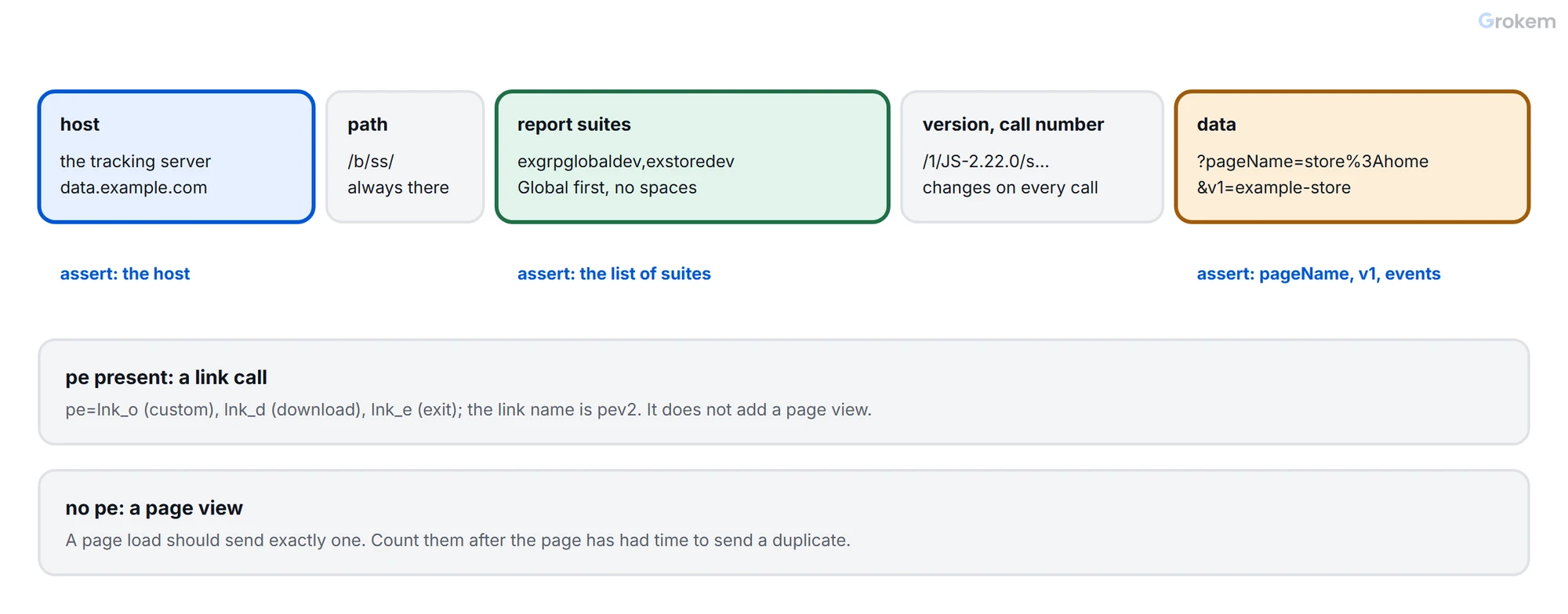
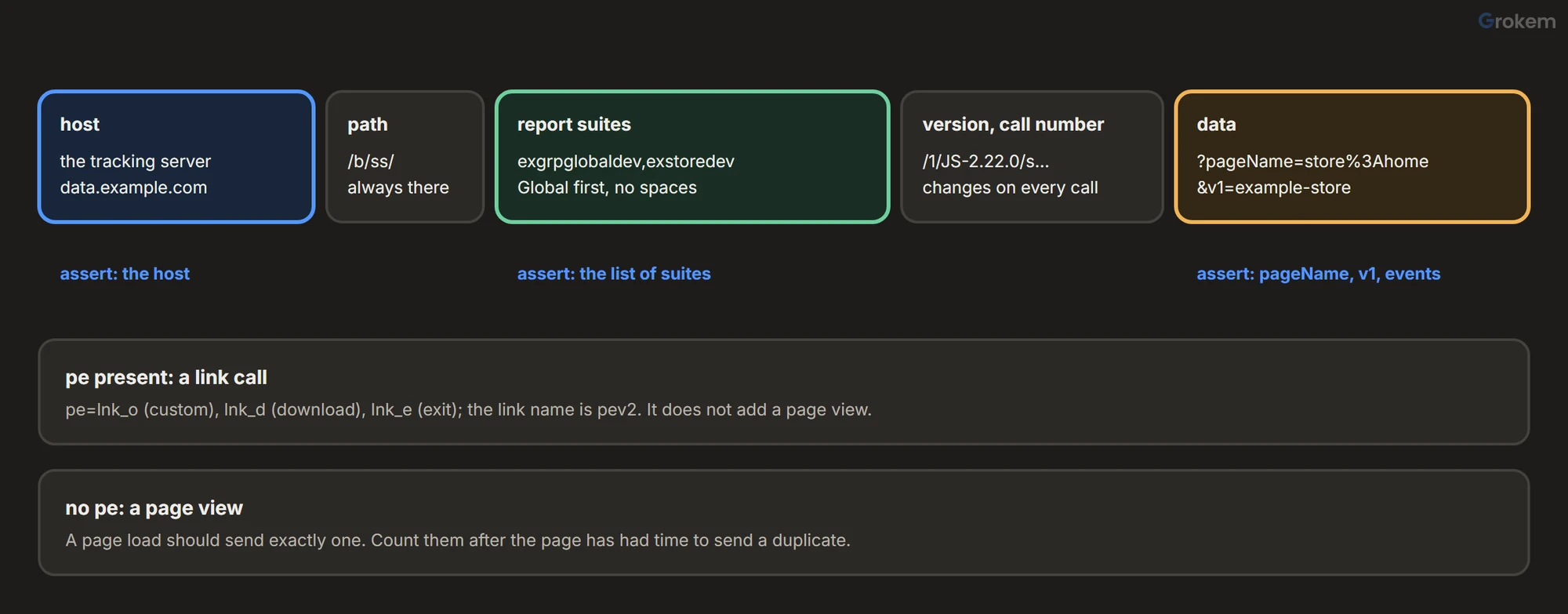
Parameter names are case-sensitive: pageName is recorded, pagename is not. eVars use the v form, not eVar. The test below relies on all of this, and on the fact that a call with pe is a link call and a call without it is a page view.
Step 1 of 6: Install Playwright
In your project (or an empty folder with npm init -y):
npm i -D playwright
npx playwright install chromium
Those are the commands from Playwright's library documentation; Chromium alone is enough here. The test uses Node's built-in test runner, so there is nothing else to install.
Step 2 of 6: Write the collector
The collector listens to every request the page makes and keeps the Analytics ones, split into the parts the tests will check. Save it as beacons.mjs:
// beacons.mjs: collect the Adobe Analytics image requests a page sends
export function watchBeacons(page) {
  const beacons = [];

  page.on('request', (request) => {
    const url = new URL(request.url());
    if (!url.pathname.startsWith('/b/ss/')) return;

    const parts = url.pathname.split('/'); // ['', 'b', 'ss', '<suites>', '1', 'JS-2.22.0', 's123']
    const params = Object.fromEntries(url.searchParams);
    beacons.push({
      host: url.hostname,
      suites: parts[3].split(','),
      pageName: params.pageName ?? params.gn,
      linkName: params.pev2,
      events: params.events ?? params.ev,
      params,
      kind: params.pe ? 'link' : 'page',
    });
  });

  return beacons;
}

// Give a late or duplicate beacon time to show up before you count.
export const settle = (page, ms = 1500) => page.waitForTimeout(ms);
settle is a fixed wait. It is crude, and it is the price of proving that something did not happen: you cannot wait for an event that should not come, so you wait long enough for it to have shown up. Tune the time to how slowly your property sends.
Step 3 of 6: Test the page view
Save this as beacons.test.mjs. It contains the stand-in page, so it runs as it is:
// beacons.test.mjs: run with  node --test
import { test, before, after } from 'node:test';
import assert from 'node:assert/strict';
import { chromium } from 'playwright';
import { watchBeacons, settle } from './beacons.mjs';

const SITE = process.env.SITE_URL ?? 'https://store.example.com/';
const SUITES = ['exgrpglobaldev', 'exstoredev'];
const GIF = Buffer.from('R0lGODlhAQABAIAAAAAAAP///yH5BAEAAAAALAAAAAABAAEAAAIBRAA7', 'base64');

// A stand-in page for trying the test without a property: it sends what the Analytics extension would send.
const DEMO_PAGE = `<!doctype html><title>Demo</title>
<button id="add">Add to cart</button>
<script>
  let calls = 0; // like the real library, give every call its own number so the browser never reuses one
  const send = (query) => {
    new Image().src = 'https://data.example.com/b/ss/exgrpglobaldev,exstoredev/1/JS-2.22.0/s' + Date.now() + (calls++) + '?' + query;
  };
  send('pageName=store%3Ahome&v1=example-store');
  if (location.search.includes('dup=1')) send('pageName=store%3Ahome&v1=example-store');
  document.getElementById('add').addEventListener('click', () => send('pe=lnk_o&pev2=add-to-cart&events=scAdd'));
</script>`;

let browser;
let page;
let beacons;

before(async () => {
  browser = await chromium.launch();
  page = await browser.newPage();
  // Keep the test beacons out of the reports: answer them here instead of sending them.
  await page.route('**/b/ss/**', (route) => route.fulfill({ status: 200, contentType: 'image/gif', body: GIF }));
  if (!process.env.SITE_URL) {
    await page.route('https://store.example.com/**', (route) => route.fulfill({ status: 200, contentType: 'text/html', body: DEMO_PAGE }));
  }
  beacons = watchBeacons(page);
});

after(() => browser.close());

test('a page load sends exactly one page view, to both report suites', async () => {
  beacons.length = 0;
  const firstBeacon = page.waitForRequest((request) => request.url().includes('/b/ss/')); // start waiting before the page can send it
  await page.goto(SITE + (process.env.DUP ? '?dup=1' : ''));
  await firstBeacon;
  await settle(page);

  const pageViews = beacons.filter((b) => b.kind === 'page');
  assert.equal(pageViews.length, 1, `expected 1 page view beacon, got ${pageViews.length}`);
  assert.deepEqual(pageViews[0].suites, SUITES);
  assert.equal(pageViews[0].pageName, 'store:home');
  assert.equal(pageViews[0].params.v1, 'example-store');
});
The line to notice is the one that starts firstBeacon before page.goto. A first version of this test waited for the request after navigating, and failed with a timeout on every run: the page had already sent its beacon while goto was finishing, so there was nothing left to wait for. Create the wait first, then trigger the thing that causes the request, then await the wait.
Step 4 of 6: Test a click
Add a second test to the same file, after the first:
test('adding to the cart sends one link call and no extra page view', async () => {
  beacons.length = 0;
  const linkBeacon = page.waitForRequest((request) => request.url().includes('pev2=add-to-cart'));
  await page.click('#add');
  await linkBeacon;
  await settle(page);

  assert.equal(beacons.filter((b) => b.kind === 'page').length, 0, 'a click must not add a page view');
  const links = beacons.filter((b) => b.kind === 'link');
  assert.equal(links.length, 1);
  assert.equal(links[0].linkName, 'add-to-cart');
  assert.equal(links[0].events, 'scAdd');
});
The second assertion is the one that catches a rule that sends a page view where it should send a link call. Adobe's documentation says a link call (s.tl()) does not increment page views and a page view call does, so a click that produces a request without pe is a bug worth failing the build for.
Step 5 of 6: Run it
node --test
On the stand-in page both tests pass:
ok 1 - a page load sends exactly one page view, to both report suites
ok 2 - adding to the cart sends one link call and no extra page view
# pass 2
# fail 0
To see the test catch a fault, make the page send its page view twice. The stand-in does this when you set DUP (on Windows PowerShell: $env:DUP='1'; node --test):
DUP=1 node --test
The first test now fails with the message you wrote:
not ok 1 - a page load sends exactly one page view, to both report suites
  error: |-
    expected 1 page view beacon, got 2
That is the duplicate-page-view fault from the duplicate page views guide, caught in seconds instead of in a report a week later. One detail from building the stand-in: when it sent the identical URL twice, the browser reused the first request and the second did not reach the network, so the duplicate went undetected. The real library avoids that by putting a changing number in every call, which is why the stand-in does too.
Step 6 of 6: Point it at your property
Set SITE_URL to a test page whose embed code is your property's Development environment, so you are testing the library you are about to publish:
SITE_URL=https://test.example.com/ node --test
Then change the assertions to your own values: the report suite IDs, the tracking-server host (b.host === 'data.example.com'), the page name, the events and the eVars your solution design lists. A few worth adding for a real property:
- the ECID is present (
mid), once consent allows it; - the same click sends the same variables every time;
- before consent, no request to your tracking server is made, which is the first case of the consent guide's test table.
The route that answers beacons locally means your tests send no data to Adobe, so they do not touch the reports. If you would rather have the beacons arrive, for instance to check processing in a development report suite, remove that route.
Limits to know
- Navigation. A community advisor in an Adobe thread says that a beacon sent while the page is navigating away cannot be captured reliably by any tool. Design tests around actions that do not leave the page, or assert on what is set before the click.
- What the browser sent is not what Adobe processed. The test proves the request left the browser with the right content. Whether the hit was accepted and reached the report is checked in Analytics.
- Timing is a trade-off. A longer
settlefinds more late duplicates and makes every test slower. - Property changes. Tests that pin exact values fail when a design changes on purpose. Keep the values in one place so updating them is a one-line edit.
Running it regularly
Any scheduler that can run node --test will do: a build server, a cron job, a task scheduler. Run it after every library publish to the Development environment and on a timer against production pages. A failing test should show which request it expected, which is why the assertion messages above say what was expected and what was found.
Expected result
Running `node --test` on the stand-in page prints two passing tests (`ok 1` and `ok 2`, `# pass 2`, `# fail 0`). Running it with the page sending its page view twice fails the first test with `expected 1 page view beacon, got 2`. Against your own property the same tests check your report suites, host, page name, events and variables.
Troubleshooting
| Problem | Likely cause | Fix |
|---|---|---|
| The test fails with a timeout waiting for a request that the page did send. | The wait was created after the navigation or click. The request had already been sent, so there was nothing left to wait for. | Create the page.waitForRequest promise first, then trigger the navigation or click, then await the promise. |
| A page that sends two identical page views passes the test. | In a stand-in page the same URL was requested twice and the browser reused the first request. The real library puts a changing number in every call. | Give every simulated call its own number, as the library does, so each one reaches the network. |
| Running the tests adds data to the reports. | The test page sends its beacons to your tracking server. | Answer the beacon route inside the test with page.route and route.fulfill so nothing leaves the machine, or send the test page to a development report suite. |
| An assertion on eVar1 or prop1 finds nothing. | In the image request eVars are v1 to v250 and props are c1 to c75; the eVar and prop names are not used. | Read params.v1 and params.c1. pageName is also accepted as gn and events as ev. |
| The page name is undefined on a link beacon. | When a link name (pev2) is set, the page name is ignored. | Assert on linkName for link calls, and on pageName only for page views. |
| A beacon sent while the page navigates away is missing from the test. | A community advisor says beacons sent during navigation cannot be captured reliably by any tool. | Test actions that do not leave the page, or check what the page set before the click. |
| The test is sometimes green and sometimes red for the same page. | The fixed settle time is shorter than the page's slowest beacon. | Lengthen settle for that test, and consider a wait for a specific later event instead of a fixed time. |
Frequently asked questions
Does the test send data to Adobe?
Not as written: the beacon route is answered inside the test, so nothing leaves the machine. Remove that route if you want beacons to arrive, for example in a development report suite.
Does it work with the Web SDK?
The collector reads the Analytics image request, which is what the Analytics extension sends. The Web SDK sends different requests, so the collector would need another filter.
Which Playwright and Node versions was this tested with?
Playwright 1.63.0 on Node.js 22.11.0 on 7 November 2026, with Chromium, against a stand-in page. It was not run against a live Adobe property.
Why not use the Debugger for this?
The Debugger is for looking at one page by hand. A test that reads the requests can run after every library publish and on a schedule, and fails when something changes.
Can the same approach test consent?
Yes. Load the page with fresh storage, wait, and assert that no request to your tracking server was made before the visitor chose.
Next steps
- Use it to catch duplicates: [fix duplicate page views](https://www.grokem.com/data/data-analytics/tag-management/fix-duplicate-page-views-in-adobe-launch-with-the-analytics-extension)
- Test consent before the decision: [consent in Adobe Launch](https://www.grokem.com/data/data-analytics/tag-management/consent-in-adobe-launch-for-adobe-analytics-how-opt-in-approve-and-complete-work)
- Fix values carried into the wrong hit: [Adobe Analytics values in the wrong hit](https://www.grokem.com/data/data-analytics/tag-management/adobe-analytics-values-in-the-wrong-hit-clear-variables-link-
References
From Grokem: https://www.grokem.com/data/data-analytics/tag-management/test-adobe-launch-beacons-automatically-with-playwright