Before you start
3- A Tags property with the Adobe Analytics extension and permission to edit its configuration and rules
- A list of the file types, outbound links and interface actions the reports must cover
- The browser's developer tools
Link tracking in Adobe Analytics looks like one switch and behaves like six. Some clicks are recorded by the library on its own, some only when a rule asks, and a click you recorded by hand can be recorded twice. When exit links are missing, or download counts are doubled, the cause is usually one of the settings below.
This guide lists the settings of the Adobe Analytics extension that decide how links are tracked in an Adobe Launch (Tags) property, how the library tells an exit link from a download, and what to check in the browser. It describes the extension's Link Tracking section as Adobe documents it.
The three kinds of link
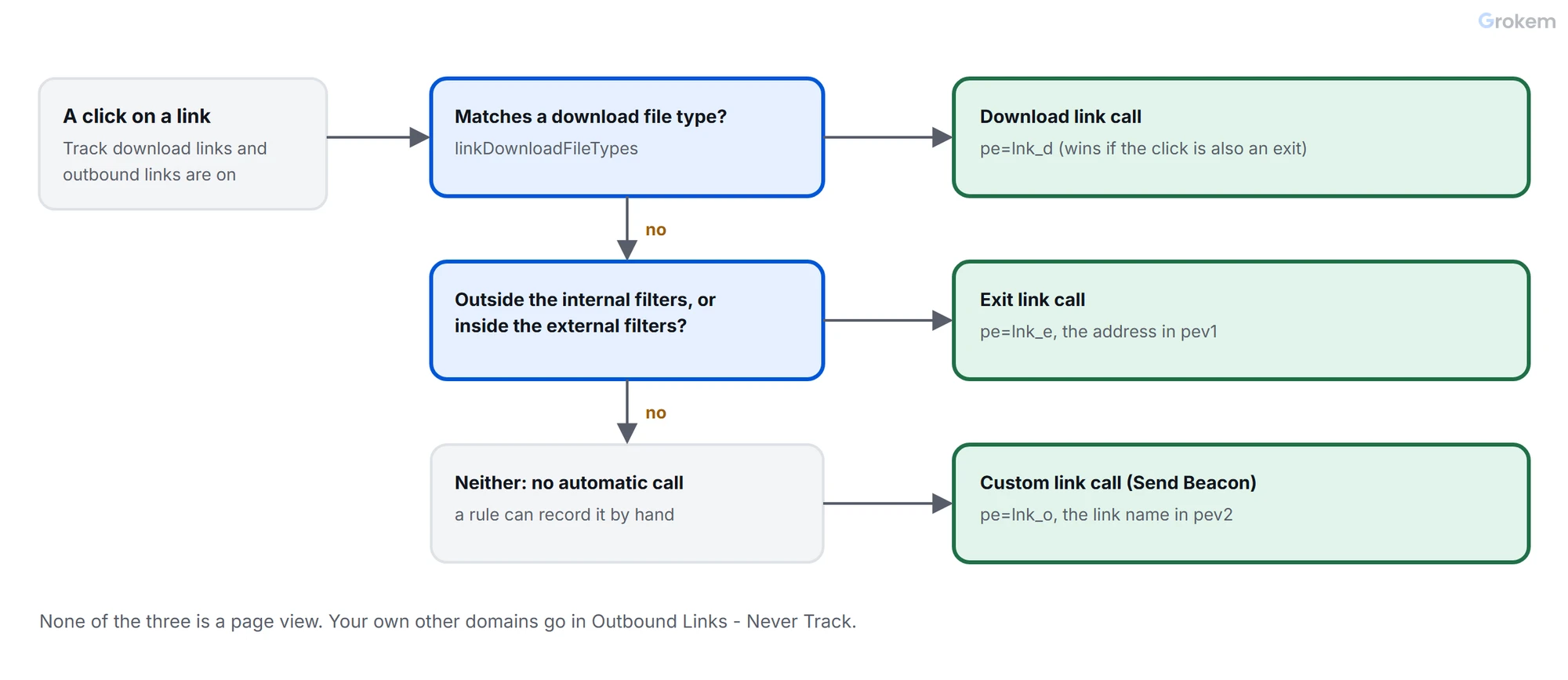
Adobe's link types are custom, download and exit, written o, d and e in the tracking call and lnk_o, lnk_d and lnk_e in the request's pe parameter. None of them is a page view: a link call (s.tl()) does not increment page views, which is what the Send Beacon action's option "Do not increment a pageview" does.
| Kind | Who records it | Detected by |
|---|---|---|
| Download | The library, automatically, if enabled | The clicked address matches the download file types |
| Exit | The library, automatically, if enabled | The clicked address is outside your internal filters, or inside your external filters |
| Custom | Your rule, on an event you choose | You: a Send Beacon action with the link type Custom Link and a link name |
Step 1 of 6: Decide what you want in the reports
Before changing a setting, write down the questions the reports must answer: which files are downloaded, which outbound links are clicked, which interface actions matter. Each answer maps to one of the three kinds. Anything that is a custom link needs a name that will still make sense in a year, because the link name becomes the item in the report.
Step 2 of 6: Set the automatic tracking
In the Adobe Analytics extension's configuration, open Link Tracking. Adobe describes these options:
| Setting | What Adobe says it does |
|---|---|
| Enable ClickMap | Turns on ClickMap |
| Track download links | Tracks links to downloadable files on your site |
| Download Extensions | With download tracking on, lets you select the extensions of file links included in the Downloads report |
| Track outbound links | Determines whether any selected link is an exit link |
| Keep URL Parameters | Preserves query strings |
Under the hood these correspond to library settings that Adobe documents separately:
- Downloads. When automatic download tracking is on, the library compares each clicked address with
linkDownloadFileTypes, and a match fires a download link call. That variable must be set for automatic download tracking to work. Settings.trackDownloadLinkstofalseturns it off if you want to calltl()yourself. - Exits. The library compares each clicked address with
linkInternalFiltersandlinkExternalFilters.
Step 3 of 6: Work out what counts as an exit
The two exit settings behave differently, and they combine:
| Setting | Behaviour |
|---|---|
linkInternalFilters |
A list of filters, usually domains, comma-separated with no spaces. When it has a value it acts as a block list: a click that matches none of its values is an exit link. The whole address is examined, and the query string too when linkLeaveQueryString is on |
linkExternalFilters |
When it has a value it acts as an allow list: a click that matches none of its values is not an exit link |
| Both set | The click must match linkExternalFilters and not match linkInternalFilters to be an exit link |
| A click that matches both exit and download criteria | The download link type takes priority |
The extension's own field for keeping domains out of the exit report is Outbound Links - Never Track: a comma-separated list of filters, usually domains, for links that should never be tracked as exits. Put your own other domains there. A visitor who moves from your shop to your payment domain has not left your business, and passing the ECID between those domains is the other half of the same job.
Step 4 of 6: Handle a single-page application
On a single-page application an internal link can look like an outbound link, for example a #/about link on the same host. The extension offers two ways to handle it, and Adobe says they are mutually exclusive:
Never Track. Add an entry to stop tracking matching links. Adobe's example is a hash link on the application's host: every#link to that host is ignored, and links to other hosts are still tracked.Always Track. Add the specific links you want, such as an "about" page, and only those application links are tracked.
Choose one by the numbers: if nearly all application links should be ignored, use the first; if only a few should be counted, use the second.
Step 5 of 6: Record custom links with a rule
For anything the library does not detect, create a rule on the event that represents the action (a click, a form submission, a Direct Call) and use Adobe Analytics - Send Beacon. Select the link type Custom Link, enter the link name, and choose Do not increment a pageview (s.tl()). Set the variables the link should carry in a Set Variables action first, and clear them before, as values in the wrong hit explains.
Do not also record an exit or download by hand. Adobe's tl reference warns that if you manually call s.tl() for clicks the library already tracks, you can send duplicate data, and that duplicate data inflates report numbers. If you must call it yourself for such a link, Adobe suggests checking whether s.lt() returns a value before you do.
Step 6 of 6: Check each kind in the browser
Open the Network panel, filter for /b/ss/ and click an example of each kind:
| Click | What the request should show |
|---|---|
| A file on your download list | pe=lnk_d, and no page view |
| A link to another site | pe=lnk_e, and no page view |
| One of your own other domains | No exit request, if you added it to Outbound Links - Never Track |
| A custom action | pe=lnk_o with the link name in pev2 |
The link name is in pev2 and the link address in pev1; when a link name is set, the page name in the request is ignored. One more check: a single click should produce one request. Two requests for one click is the duplicate described in step 5.
If you have set up automated beacon tests, add these four clicks to them: the collector there already separates link calls (pe present) from page views.
If you hold Analytics back until consent
The same settings matter for consent. Adobe's page on managing consent with tags says that, to keep Analytics from firing automatically, you turn off Track download links and Track outbound links: when they are not selected, Analytics does not fire on its own. Consent in Adobe Launch shows the whole setup.
Expected result
A click on a listed file sends one request with `pe=lnk_d`; a click on another site sends one with `pe=lnk_e`; a click on one of your own other domains sends none if it is in Outbound Links - Never Track; a custom action sends one with `pe=lnk_o` and its name in `pev2`. None of them adds a page view.
Frequently asked questions
Does a link call count as a page view?
No. Adobe's tl reference says s.tl() works like s.t() but does not increment page views. In the Send Beacon action that is the option Do not increment a pageview.
What happens when a click matches both exit and download criteria?
Adobe's linkExternalFilters and linkInternalFilters pages say the download link type takes priority.
Why do I see two requests for one click?
Most likely a manual s.tl() for a click the library already tracks. Adobe's tl page warns this sends duplicate data and inflates the numbers, and suggests checking whether s.lt() returns a value before calling s.tl().
Can I use Never Track and Always Track together in a single-page application?
No. Adobe's extension page says the two options are mutually exclusive.
How do I stop Analytics firing on its own before consent?
Adobe's page on managing consent with tags says to turn off Track download links and Track outbound links; when they are not selected, Analytics does not fire automatically.
References
From Grokem: https://www.grokem.com/data/data-analytics/tag-management/exit-download-and-custom-link-tracking-in-adobe-launch-settings-and-checks