
Before you start
5- A Tags (Adobe Launch) property with the Adobe Analytics extension and the Experience Cloud ID Service extension, and a development environment
- A consent tool on the site that can report the visitor's choice to the page by calling a function
- Permission in Tags to edit extensions and rules and to build libraries
- The browser's developer tools, with the site's cookies cleared before each test
- A decision from your legal or privacy team on which categories may run before the visitor chooses
A visitor has not yet answered the consent banner, and the Adobe Analytics extension has already sent a page view. Or the visitor said yes and no data arrives at all. Both come from the same place: the Adobe opt-in mechanism is simple, but three of its parts (the setting, the approve call and the complete call) are easy to read wrongly.
This guide sets up consent for Adobe Analytics in an Adobe Launch (Tags) property that uses the Experience Cloud ID Service extension, explains what each part does according to Adobe's documentation, and shows how to test it. It is not legal advice: Adobe's own pages say the opt-in service is not legal advice and tell you to consult your legal department, and which cookies need consent where is a question for them.
What the opt-in service does, and what it does not
Adobe describes the opt-in service as a way to approve or deny the downloading of Adobe cookies, and to say which solutions may generate them. Two limits matter:
- It does not collect consent. The page states that it provides no support for gathering a visitor's consent preferences and is not a repository for them. Your consent tool does that. The service only needs to be told the answer.
- It can remember the answer. The extension can store the permission in a first-party cookie on your domain, or you can keep it in your consent tool and hand it back on each page.
With opt-in enabled, the Adobe libraries are held back until a decision exists: according to Adobe's documentation, opt-in delays the solution libraries from firing tags or setting cookies until consent has been given, and Analytics is among the supported solutions.
Two ways to hold Analytics back
Adobe's page on managing consent with tags describes two approaches, and they can be combined:
- Do not fire the tags. Put a consent check in the rule's conditions, for example a data element that reads your consent cookie. For Analytics, also turn off Track download links and Track outbound links in the extension's Link Tracking settings, because Analytics does not fire automatically when those are not selected.
- Use the opt-in object. Turn opt-in on in the Experience Cloud ID Service extension and tell the library the visitor's choice. Adobe recommends this for the Visitor ID Service and for Audience Manager's DIL, which fire automatically as soon as they are on a page. Target and Advertising fire only when a rule's action tells them to.
Because the Adobe Analytics extension depends on the ID service for the visitor identifier, the second approach is the one this guide builds. Multi-suite tagging explains why the ID service extension is there.
What the setting says
In the Experience Cloud ID Service extension, the setting Enable Opt In? has three choices:
| Choice | What Adobe's extension page says |
|---|---|
| No | Does not wait for consent to track the visitor. This is the default. |
| Yes | Waits for consent to track the visitor. |
| Determined at runtime using function | You pick a data element that resolves to true or false, for example based on whether the visitor is in the EU. |
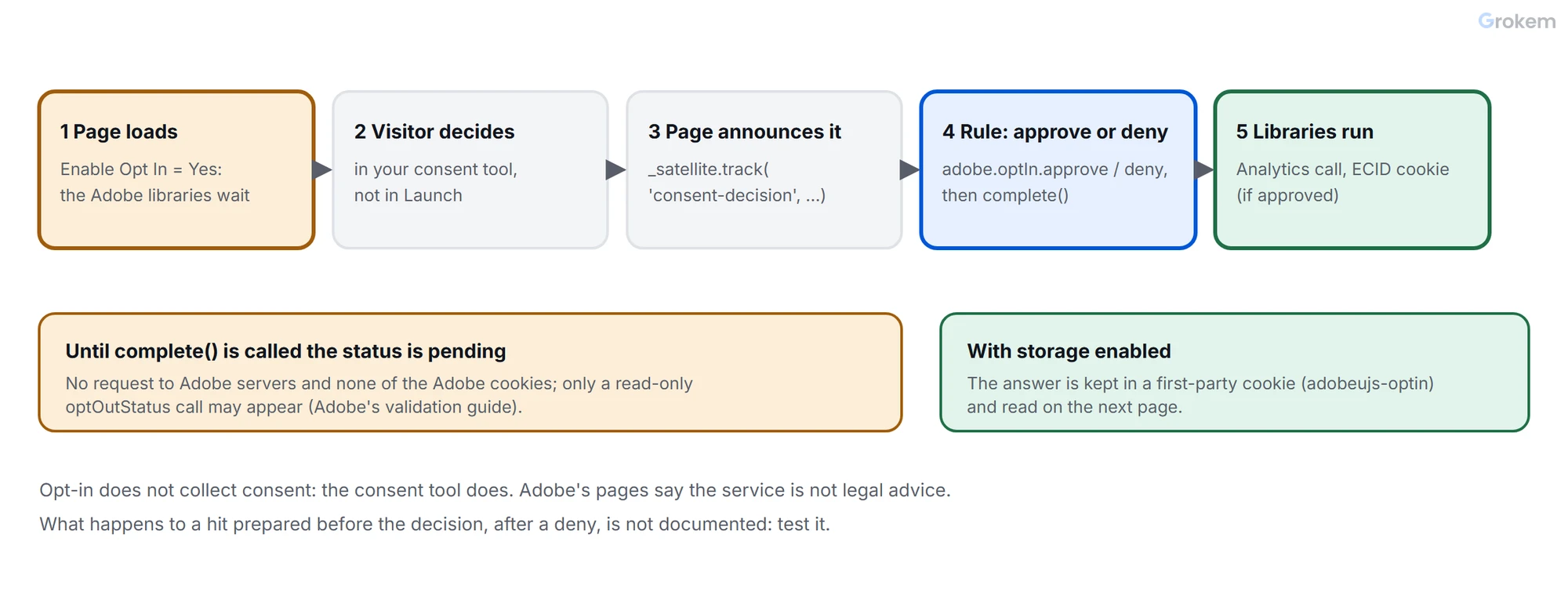
Adobe's setup guide adds that the default, No, treats all permissions as granted. People in community threads read the label backwards, so it is worth stating plainly: Yes means the libraries wait for an answer. Changing the setting later is not how a visitor "approves"; the approve call below is.
Step 1 of 6: Decide which tools wait
List what the property loads and say, for each, how it will be held back:
| Tool | How it starts | Held back by |
|---|---|---|
| Visitor ID Service (ECID) | Fires automatically | The opt-in object |
| Audience Manager DIL | Fires automatically | The opt-in object |
| Adobe Analytics | From your rules, and from the automatic link options | The opt-in object, and a consent condition on rules you own |
| Adobe Target | Only when a rule's action calls it | A consent condition on that rule |
Write the table down: it becomes the test plan in step 6.
Step 2 of 6: Turn opt-in on
In the Experience Cloud ID Service extension configuration:
- Set Enable Opt In? to Yes, or to Determined at runtime if only some visitors need to wait.
- Decide whether the extension stores the answer. With Is Opt In Storage Enabled? on, consent is kept in a first-party cookie on your domain, which Adobe's validation guide names
adobeujs-optin. Without it, your consent tool must hand the stored answer to the library on every page. - Leave Pre Opt In Approvals empty unless you have decided, with your legal team, that a category may run before the visitor chooses. It defines which categories are approved or denied when no preference exists; the category codes are
aafor Analytics,ecid,targetandaam.
Adobe's extension page gives the default storage expiry as 13 months but describes the unit inconsistently, so check the field in your own interface.
Step 3 of 6: Tell the library what the visitor chose
Your consent tool reports the choice; a rule passes it on. The page side calls a Direct Call rule with the answer:
// In the page, when the consent tool reports the choice
function onConsentDecision(analyticsAllowed) {
  if (window._satellite) {
    _satellite.track('consent-decision', { analytics: analyticsAllowed });
  }
}
The rule's event is a Direct Call with the identifier consent-decision, and its action is Custom Code:
// Core - Custom Code action of the rule "Consent - decision"
var analyticsAllowed = event.detail.analytics === true;

if (analyticsAllowed) {
  adobe.optIn.approve([adobe.OptInCategories.ANALYTICS], true);
} else {
  adobe.optIn.deny([adobe.OptInCategories.ANALYTICS], true);
}

adobe.optIn.complete();
This follows the pattern in Adobe's Launch opt-in article. Three details from the reference:
- The second argument,
shouldWaitForComplete, set totruemeans the approval is not final untiladobe.optIn.complete()is called. Forgetcomplete()and the status stays pending: the libraries keep waiting and no data arrives, however many times the visitor clicked accept. - The category constants are
ANALYTICS(aa),ECID,TARGETandAAM. A tool that is not listed in the call is not approved by it. adobe.optIn.isApproved(adobe.OptInCategories.ANALYTICS)tells you whether Analytics is approved, which is useful for hiding a banner once the visitor has answered.
If the visitor's answer is stored and known when the page loads, the call can run before the library exists, and the guard skips it. Let the extension store the answer, or call the rule from an event that follows the library, as rule timing explains.
Step 4 of 6: Check which rule sends the first page view
With opt-in on, Adobe's Launch opt-in guide states that the libraries wait for consent before triggering server calls and that the Analytics call fires as soon as the approval is in place. It does not say whether a call that was prepared before the decision is sent later or discarded after a deny, and the validation page does not discuss it either, so test it (step 6) rather than assume.
If you also gate a rule with a consent condition, make sure the rule runs again when the decision arrives. A page view rule that checks consent only at page load, and finds none, will not send the first view.
Step 5 of 6: Decide what the first page view should carry
A community thread describes a site that mapped the ECID into an eVar. The first page view, prepared before consent, left that eVar empty, and a Community Advisor answered that the queued hit cannot be modified before it is sent. That is a practitioner report, not an Adobe statement, but it points at a design question you should answer on purpose: what does the first hit have to contain? If it needs the visitor ID, either accept an empty value on the hits that precede consent, or do not rely on that variable for the first page view.
Step 6 of 6: Test four cases
Use the browser's Network panel and Application tab, with the site's cookies cleared first. Adobe's validation guide gives the expectations for the first case:
| Case | What you should see |
|---|---|
| No decision yet | No requests to Adobe servers: demdex.net/id, demdex.net/event, omtrdc.net/b/ss, omtrdc.net/m2, everesttech.net. A read-only call to dpm.demdex.net/optOutStatus may appear. None of these cookies: AMCV_[org ID], mbox, demdex, s_cc, s_sq, everest_g_v2, everest_session_v2. |
| Approved | The requests appear, including the Analytics image request to your tracking server. With storage on, an adobeujs-optin cookie holds the permission. |
| Denied | Adobe's pages do not describe this case. Record what you see: requests, cookies and whether a held page view is sent. |
| Returning visitor with a stored answer | The answer is read before the libraries fire, and the first case does not repeat. |
The first case is the one that matters for compliance, and it is the easiest to automate. A Playwright test can load the page with fresh storage and assert that no request to your tracking server was made before the decision.
What community threads add
Two threads show where sites run into trouble. They are practitioner reports and need checking against your own setup.
- A consent tool that defaults to "no" for the performance category left one site with a large share of its traffic invisible. A reply in that thread said that under a full opt-in policy the data loss cannot be avoided, because you cannot force visitors to opt in.
- Policies that cover only tracking cookies are a different case. The same reply mentions letting page views through without the ECID cookie and relying on the older
s_vidcookie, with a warning that unique visitor counts inflate. Whether that is allowed for your site is for your privacy and legal teams to decide; Adobe's pages read for this guide do not describe it as a recommended setup.
Keep it from regressing
- Add the first test case to your release checks.
- Audit the property regularly: the Adobe Launch audit lists consent-related rules under its rules check.
- Re-test after any change to the consent tool, because it is the part that changes without anyone touching Launch.
Expected result
With opt-in on, a new visitor's page makes no request to Adobe servers (demdex.net/id, demdex.net/event, omtrdc.net/b/ss, omtrdc.net/m2, everesttech.net) and sets none of the listed Adobe cookies until the consent tool reports a choice. After an approval the requests appear, including the Analytics image request to your tracking server, and with storage on an `adobeujs-optin` cookie holds the permission. After a deny you record what you see, because Adobe's pages leave that case to your own test.
Troubleshooting
| Problem | Likely cause | Fix |
|---|---|---|
| No data arrives after the visitor accepts. | The approve call was made with shouldWaitForComplete set to true and adobe.optIn.complete() was never called, so the status stays pending and the libraries keep waiting. | Call adobe.optIn.complete() after every approve or deny call, in the same rule. |
| Requests to Adobe servers appear before the visitor has chosen. | Enable Opt In? is No, which is the default and does not wait for consent, or a rule calls a tool outside the opt-in object's control. | Set Enable Opt In? to Yes, rebuild and publish the library, and check which request fires first in the Network panel. |
| Adobe cookies such as AMCV_ or s_cc exist before any decision. | The Visitor ID Service fires automatically as soon as it is on a page. With opt-in off, or on a library built before the setting was saved, it sets its cookies. | Confirm the setting is Yes in the extension, republish the library, clear the site's cookies and test again. |
| The visitor is asked again on every page. | Opt-in storage is off and nothing hands the stored answer back to the library on the next page. | Turn on Is Opt In Storage Enabled?, or pass the stored answer from your consent tool to the library on every page. |
| The approve rule throws 'adobe is not defined'. | The rule ran before the Experience Cloud ID Service extension had loaded the opt-in object. | Fire the rule from an event that follows the library, or let the extension store the answer so the page does not need to call it early. |
| The first page view carries an empty value for a variable mapped to the ECID. | A community thread reports that the page view is prepared before consent, when no ECID exists, and cannot be changed once queued. | Do not rely on the ECID-mapped variable for the first hit, or accept that it is empty on hits that precede the decision. |
| The first page view never arrives, because the page view rule is gated by a consent condition. | The condition is checked once at page load, finds no consent and the rule does not run again when the decision arrives. | Run the rule again from the consent decision, or let the opt-in object hold the call instead of gating the rule. |
| After a deny, requests or cookies still appear. | A rule may call a tool outside the opt-in object, or a category was pre-approved. Adobe's pages do not describe the deny case in detail. | Check Pre Opt In Approvals, list every request in the Network panel, and record what happens so the behaviour is documented for your site. |
Frequently asked questions
Does the Adobe opt-in service collect the visitor's consent?
No. Adobe's page says it provides no support for gathering consent preferences and is not a repository for them. Your consent tool collects the choice, and the opt-in object is told the result.
What does Enable Opt In? set to Yes mean?
The Adobe libraries wait for consent before tracking the visitor. No is the default and does not wait. The third choice, Determined at runtime using function, uses a data element that resolves to true or false, for example based on whether the visitor is in the EU.
Why must complete() be called?
With shouldWaitForComplete set to true, the approval is not final until adobe.optIn.complete() is called, and the status stays pending until then.
Is a hit that was prepared before the decision sent after approval?
Adobe's Launch opt-in guide states that the Analytics call fires as soon as the approval is in place, but it does not say whether an earlier hit is held and sent or discarded after a deny. Test your own setup and record the result.
Is this legal advice?
No. Adobe's own opt-in pages say they are not legal advice and tell you to consult your legal department. Which cookies need consent, and where, is a decision for your privacy and legal teams.
Next steps
- Add the no-decision case to automated checks: [test Adobe Launch beacons with Playwright](https://www.grokem.com/data/data-analytics/tag-management/test-adobe-launch-beacons-automatically-with-playwri
- Review the property's rules, including consent rules: [Adobe Launch audit](https://www.grokem.com/data/data-analytics/tag-management/adobe-launch-audit-step-by-step-property-review-with-scorecard)
- Fix rules that fire before the data exists: [rule timing](https://www.grokem.com/data/data-analytics/tag-management/why-an-adobe-launch-data-element-is-empty-rule-timing-and-order-explained)
References
- Adobe Experience Cloud ID Service extension overview – Adobe
- Opt-in Service – Adobe
- Opt-in Reference – Adobe
- Opt-in Service using Experience Cloud ID Service extension in Adobe Launch – Adobe
- Validating Opt-in Service – Adobe
- Deploy JavaScript Tags to Manage Customer Consent – Adobe
- Use Opt-In to Control CX Enterprise Activities Based on User Consent – Adobe
- adobe.optIn and ECID in an eVar – Adobe Experience League Community
- OneTrust's default opt-out consent causing AA data loss – Adobe Experience League Community
From Grokem: https://www.grokem.com/data/data-analytics/tag-management/consent-in-adobe-launch-for-adobe-analytics-how-opt-in-approve-and-complete-work