A change published from Adobe Launch (Tags) reaches every page of every site the property serves. That makes the questions "who may publish?" and "how do we undo it?" the two most important questions about the property, and the answers are in several of Adobe's pages, not in one.
This guide puts them together: the rights Adobe defines and how to split them, the path a change takes from development to production, a release runbook you can adopt, and the ways of going back that Adobe's documentation does support. It also says plainly what the documentation does not describe, so that nobody finds out during an incident.
Who may do what
In Tags, permissions are not given to individual users. Adobe's page on user permissions explains that they are set in product profiles in the Admin Console, in four categories: Platforms, Properties, Property Rights and Company Rights. The property rights are the ones that govern a release:
| Right | What it allows, per Adobe |
|---|---|
| Develop | Most day-to-day tasks in the interface: working on rules and data elements, building and submitting libraries |
| Approve | Taking a submitted library and building it to the staging environment; approving it |
| Publish | Publishing approved libraries to the production environment |
| Edit Property | Editing the basic configuration of the properties the user has access to |
| Manage Extensions | Installing, modifying and deleting extensions |
| Manage Environments | Creating and modifying environments |
Four details decide how you use them:
- Read-only is the default. A user with access to a property but no assigned rights has read-only access to it.
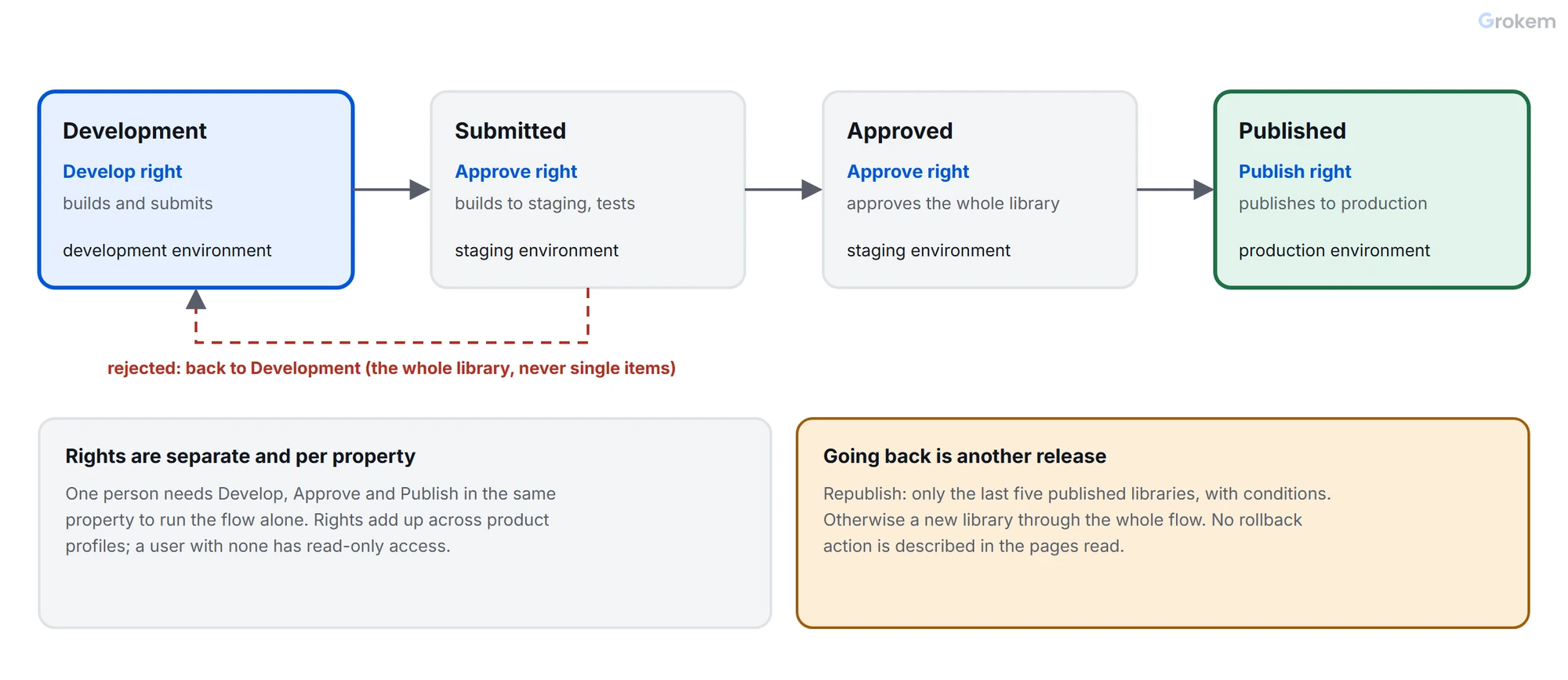
- The rights are separate and per property. Adobe's publishing page says they are granted within a given property and are not inclusive: one person needs all three of Develop, Approve and Publish in the same property to run the whole flow by themselves.
- They add up. A user who belongs to several product profiles gets the permissions of each added together.
- Company rights are separate. Manage Properties, which Adobe says administrators usually perform, lets a user create, modify and delete properties; Develop Extensions covers extension packages the company owns.
Adobe's own example of separation of duties is the one to copy: a company that wants nobody to deploy to production except its IT team gives consultants only the Develop right, and leaves Approve, Publish and Manage Environments with the IT team.
The path of a change
A library moves through four states, and each state is tied to an environment, according to Adobe's pages on publishing and environments:
| State | Environment | What happens |
|---|---|---|
| Development | Development | Libraries start here and all changes are made here; builds go to the development environment the library is assigned to |
| Submitted | Staging | The library is tested in staging by someone with approval rights |
| Approved | Staging | It waits for someone with publishing rights |
| Published | Production | The library is live |
Facts about the path that matter for planning:
- Libraries are approved or rejected as a whole. Adobe states that you cannot approve or reject individual items in a library. A rejected build goes back to Development.
- An environment holds one build at a time. When you create a library build you must assign it to an environment, and each environment can be assigned only one build at a time.
- Embed codes differ. The production embed code supports browser caching; the development and staging embed codes do not, and Adobe advises against using them on busy sites.
- A library must contain what it needs. If you do not include all the necessary components, the build fails at build time. The Add All Changed Resources option pulls in the items that were edited or deleted.
A release runbook
Adapt this to your team. It uses only steps the documentation describes, in the order the flow imposes:
- List the changes. Open the library and list what it contains. For any rule, data element or extension you doubt, use Compare Revisions to see what differs from the published version.
- Build to development and test. Test on a page that loads the development embed code, with the checks of the audit that matter for this change.
- Submit for approval. This makes the library available to an approver.
- Test in staging. The approver builds to staging and tests there. If something is wrong, reject: the library returns to Development.
- Approve. Only after the staging test passes.
- Publish at an agreed time. Someone with the Publish right takes the library to production, outside peak hours for the busiest sites, and says so in the team's channel.
- Verify production. Read the live build's date with
_satellite.buildInfoin the console and confirm it matches the library you published; then run the beacon checks from the Playwright guide against production pages. - Record it. Write down the date, the library name, the changes and who approved and published.
Going back
Adobe's publishing page does not use the word "rollback" or describe a rollback feature. What it and the related pages do describe is below. Choose by how fast you need to act and how precise the undo must be.
| Option | What Adobe documents | Use it when |
|---|---|---|
| Republish a recent library | Available only on the last five published libraries, and only when the production environment has Archive off and uses a Managed by Adobe host | The last release is the problem and the previous one was good |
| Build a new library from earlier revisions | To change production content you must create a new library and take it through the whole publishing flow; the Libraries page lets you select a revision of an item in a library | Only one rule or data element is the problem |
| Restore a resource from its revision history | Compare Revisions lets you copy settings from an earlier revision into the latest version with Use These Changes; you must save afterwards | You need to put one item back, then release it normally |
| Deactivate the item and publish | Removing an item from a library requires deactivating it first and then publishing the deactivated state | A rule must stop firing and nothing else should change |
Two warnings follow from these descriptions:
- Every option except the first needs a full release. The flow is the same one that was used to publish the problem, so the people with Approve and Publish must be reachable during an incident, not only during normal work.
- Browsers may keep the old build for a while. Adobe says the production embed code supports browser caching. The page gives no duration, so a rollback does not necessarily reach every visitor at the moment it is published.
What Adobe does not describe
Plan around these gaps, because none of them is covered by the pages read for this guide:
- a single rollback action;
- how long a published change takes to reach visitors, or how long browsers keep a cached build;
- how to roll back further than the last five published libraries, other than by building a new library;
- what happens to a library in the middle of the flow when another one is published.
Run one rollback rehearsal on a development property or an unimportant property, and write down what you saw. That rehearsal is worth more than any of the descriptions above.
After an incident
Two tools help reconstruct what happened. Selecting a company in the interface shows its audit logs, and the Reactor API's /audit_events endpoint returns records of changes to properties your organization owns, named like rule.updated or build.created, with the user's name and email. Compare Revisions then shows what changed in a given rule, data element or extension. The Launch audit covers both under its access and history check.
Checklist
- Rights come from product profiles in the Admin Console, not from exceptions made person by person.
- People who build rules and data elements have only the Develop right on production properties.
- Approve, Publish and Manage Environments are held by a smaller group.
- Nobody holds Develop, Approve and Publish together on a property that serves a large site.
- People who left the team no longer belong to any product profile.
- Each library has a name that says what it changes.
- The library contains only the changes meant for this release.
- Doubtful changes were compared with the published version using Compare Revisions.
- The library was built to development and tested on a page with the development embed code.
- The approver tested in staging, not only the builder in development.
- The whole library is approved or rejected, never partly.
- Publishing happens at an agreed time and is announced to the team.
- After publishing, the live build date from _satellite.buildInfo matches the library.
- Beacon checks ran against production pages after publishing.
- The release is recorded: date, library, changes, approver and publisher.
- Everyone who may approve or publish knows the rollback options.
- If you rely on Republish, the production environment has Archive off and a Managed by Adobe host.
- You know which are the last five published libraries.
- A rollback was rehearsed on a development or unimportant property and the result was written down.
- The people with Approve and Publish can be reached during an incident.
- After an incident, audit events and Compare Revisions were used to see who changed what.
Frequently asked questions
Does Adobe describe a rollback button?
The pages read for this guide do not use the word rollback or describe a single rollback action. They describe republishing a recent library, building a new library from earlier revisions, restoring a resource from its revision history, and deactivating an item and publishing.
How many libraries can be republished?
Adobe's publishing page says Republish is available only on the last five published libraries, and only when the production environment has Archive off and uses a Managed by Adobe host.
Can one person run the whole flow?
Only with Develop, Approve and Publish in the same property, since Adobe says the rights are granted within a given property and are not inclusive. Adobe's own example of separation of duties gives consultants only Develop and leaves Approve, Publish and Manage Environments with IT.
Will visitors get the old build as soon as I roll back?
Not necessarily. Adobe says the production embed code supports browser caching. The page gives no duration, so test how quickly a change reaches a browser that has already loaded the library.
References
From Grokem: https://www.grokem.com/data/data-analytics/tag-management/adobe-launch-release-and-rollback-permissions-environments-and-a-runbook